How to find all your photos of a place
Find every photo from Paris or last summer's road trip: plot GPS photos on a map and select an area, filter by place name, or describe what it looked like.
On this page
To find photos of a place, use the GPS positions your phone or camera saved in them. Open the map in firelet.media Gallery and draw a box round the place, and the grid shows everything taken inside it. You can also filter by city or country once you've set up a place-name service, or describe what the place looked like and let AI search find it.
Three ways to find photos of a place
Each method covers a gap the others leave, so it's worth knowing all three.
| Method | Works on | Needs |
|---|---|---|
| Map → Select area | Photos with GPS | Nothing extra: pins are plotted on your PC |
| Place names | Photos with GPS | A place-name service you choose, and Look up places |
| AI description search | Any photo, GPS or not | The AI model and Index library |
Most phone photos have GPS. Many older camera photos and all scans don't. For those, the answer is AI search, or adding a location yourself.
On the map: Select area
The map is the quickest route when your photos carry GPS, and it needs no setup.
- Click Map on the toolbar. The header tells you how many items have a location, for example "Map — 1,240 of 3,815 items have a location".
- Click Fit to zoom to everything plotted.
- Zoom in on the place you want with the mouse wheel.
- Click Select area.
- Drag a rectangle round the place.
The map closes by itself and the grid shows only the pictures taken inside your rectangle, with a chip on the toolbar to clear the selection when you're done.
The toolbar at the top of the map has a few helpful switches. Photos shows thumbnails instead of pins, Cluster groups nearby pins, Trail joins photos in date order (lovely for a road trip) and Heatmap shows where you take the most pictures.
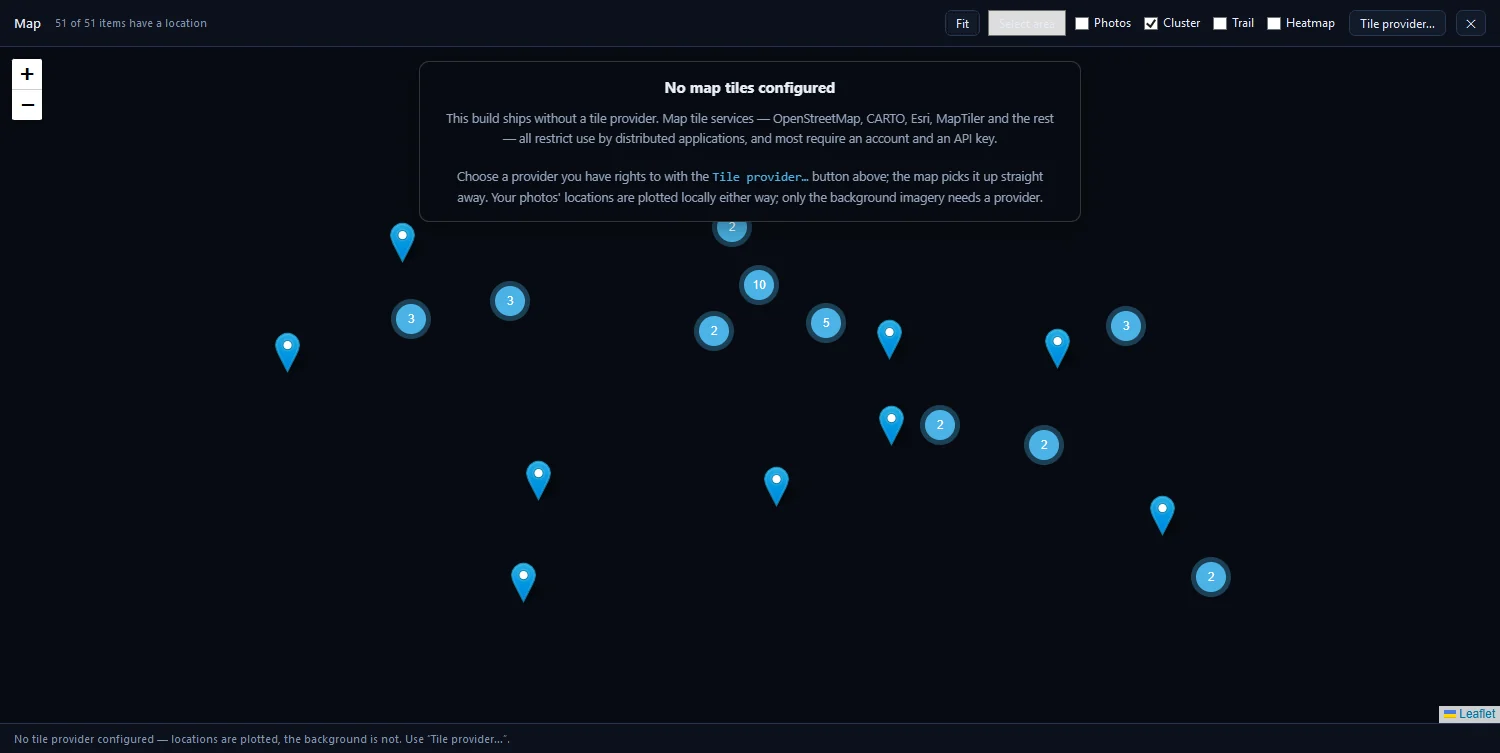
On Windows, the map needs the Microsoft Edge WebView2 Runtime, which most Windows 11 PCs already have. How to see your photos on a map covers the rest of the map's controls.
By place name (needs a place-name service you set up)
A map box is great for "somewhere around here". Sometimes you want "everything from Lisbon", or every country you've been to. That needs place names, which come from reverse geocoding: turning coordinates into a city and country.
firelet.media Gallery has no built-in place-name provider and no offline place database, so this is off until you choose one.
- Open Filters with Alt+2 and expand Location.
- Click Service…. The "Reverse-geocoding service" window opens.
- Enter the service's web address, with
{lat}and{lon}where the coordinates go. The window lists examples, such as a self-hosted Nominatim, LocationIQ, OpenCage and BigDataCloud. - Click Save.
- Click Look up places.
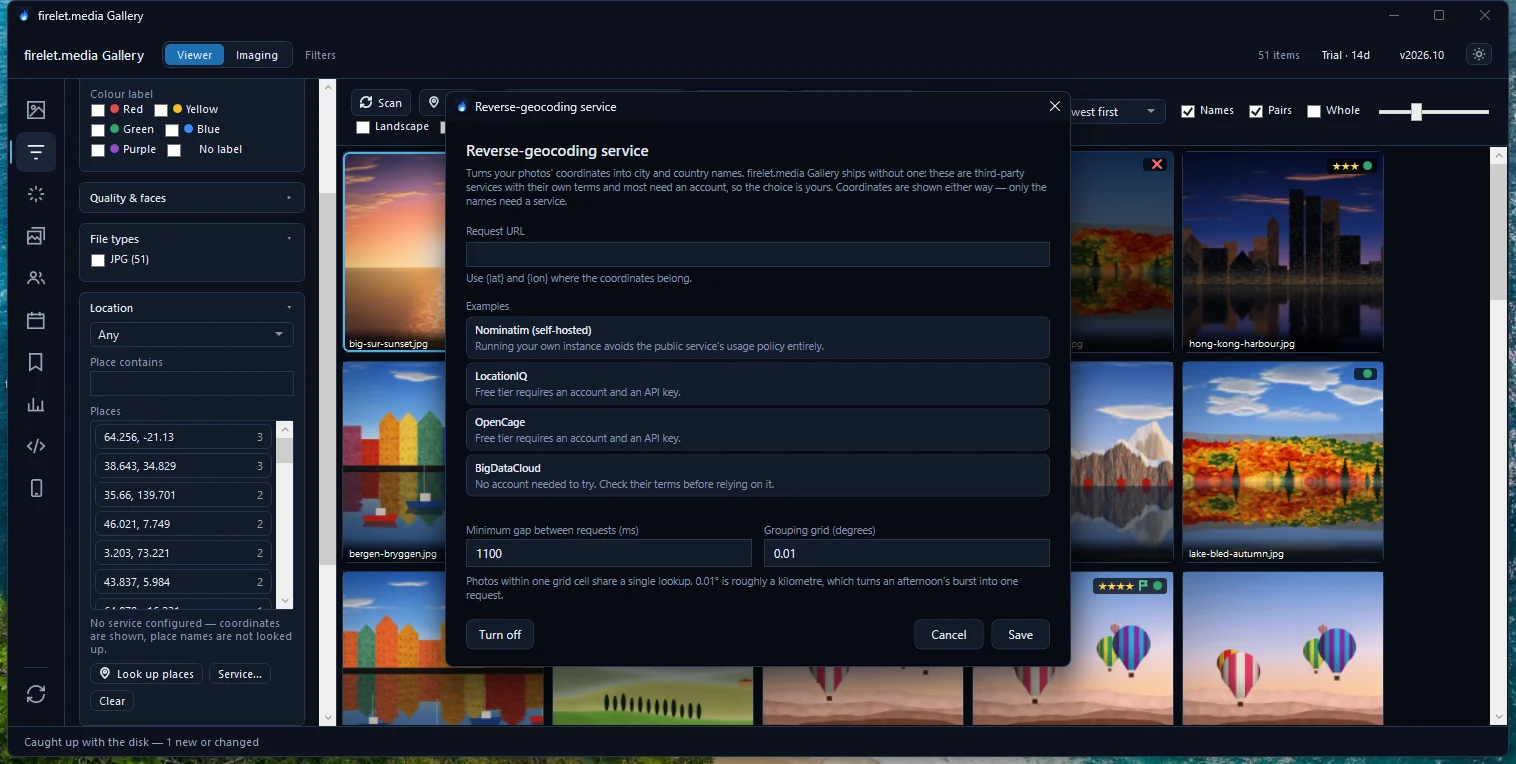
The lookup makes one request for each area of roughly 1 km, and remembers the answers, so it's gentle on the service and quick the next time.
Once the names are in, you have several ways to use them:
- Type in Place contains under Filters → Location, for example "Lisbon".
- Pick from the Places list, or browse the Countries and cities tree.
- Type the city or country into the ordinary search box. It matches place names along with everything else.
- In Advanced query (Alt+9), write
city~lisbonorcountry~portugal.
By what it looked like: AI search
Scans of old prints, photos from cameras without GPS, and pictures shared by relatives rarely know where they were taken. You probably remember what the place looked like, though, and that's enough.
Open the AI panel (Alt+3) and describe it: "harbour with fishing boats", "Eiffel Tower at night", "red desert canyon" or "snowy mountain lake". The gallery ranks your whole library by how well each picture matches, whether it has GPS or not. It needs the AI model (a one-time 438 MB download) and a run of Index library first, and it works best with English descriptions.
Combine it with the date range on the toolbar to narrow it to one trip. How to find a photo by describing what's in it has tips for writing good descriptions.
Photos without GPS: add the location
Found the photos by description? Give them a location, and they'll turn up on the map and in place filters from then on.
- Find the photos that lack one: Filters → Location → No location, or
has!=gpsin Advanced query. - Select the pictures taken in the same place.
- Press Ctrl+Shift+L to open Location.
- Paste a Google Maps or OpenStreetMap link to the spot, or type the coordinates.
- Click Set.
If another photo already has the right position, right-click it and choose Copy location, then use Use the copied location in the Location window. The new location is stored as a correction in the library, and the photo file itself isn't changed. How to add or change a photo's location has the details.
Keep the trip as an album
Once you've gathered the photos of a place, keep them together so you never have to search again.
- With the results showing, press Ctrl+A to select them all.
- Open Albums & keywords with Alt+4.
- Type a name, such as "Lisbon 2025", and press Enter.
The album is created with the selected pictures in it. No files are copied, and a picture can be in as many albums as you like. For places you return to often, add a keyword instead, with levels such as Places > Portugal > Lisbon.
For next time, turn on photo location now, thank yourself later explains why a location in every photo pays off. These tools are in the Windows app today, and the macOS and Linux builds, which are being finished, include the map without needing WebView2.
Questions people ask
Do place names need internet?
Yes. City and country names come from a place-name service you set up yourself, and only when you press Look up places. Pins and coordinates work without it.
My old photos have no GPS. Can I still find them?
Yes. Describe them with AI search, or give them a location with Location… so they appear on the map from then on.
Was this post helpful?
Thank you — that is counted, and nothing else about you is. Still stuck? Ask a person.