How to back up your photos and your firelet.media library
The gallery isn't a backup. Back up your photo folders with any tool, and copy gallery.db from AppData to keep your stars, albums, keywords and search index.
On this page
firelet.media Gallery does not back up your photos. It has no backup feature and no cloud, and on its own it is not a backup. To back up your photo library, copy your photo folders to another drive with any backup tool, and copy the gallery's own database, gallery.db, which holds your stars, albums, keywords, edits and search index. Here is a simple routine.
What needs backing up: your photo folders and gallery.db
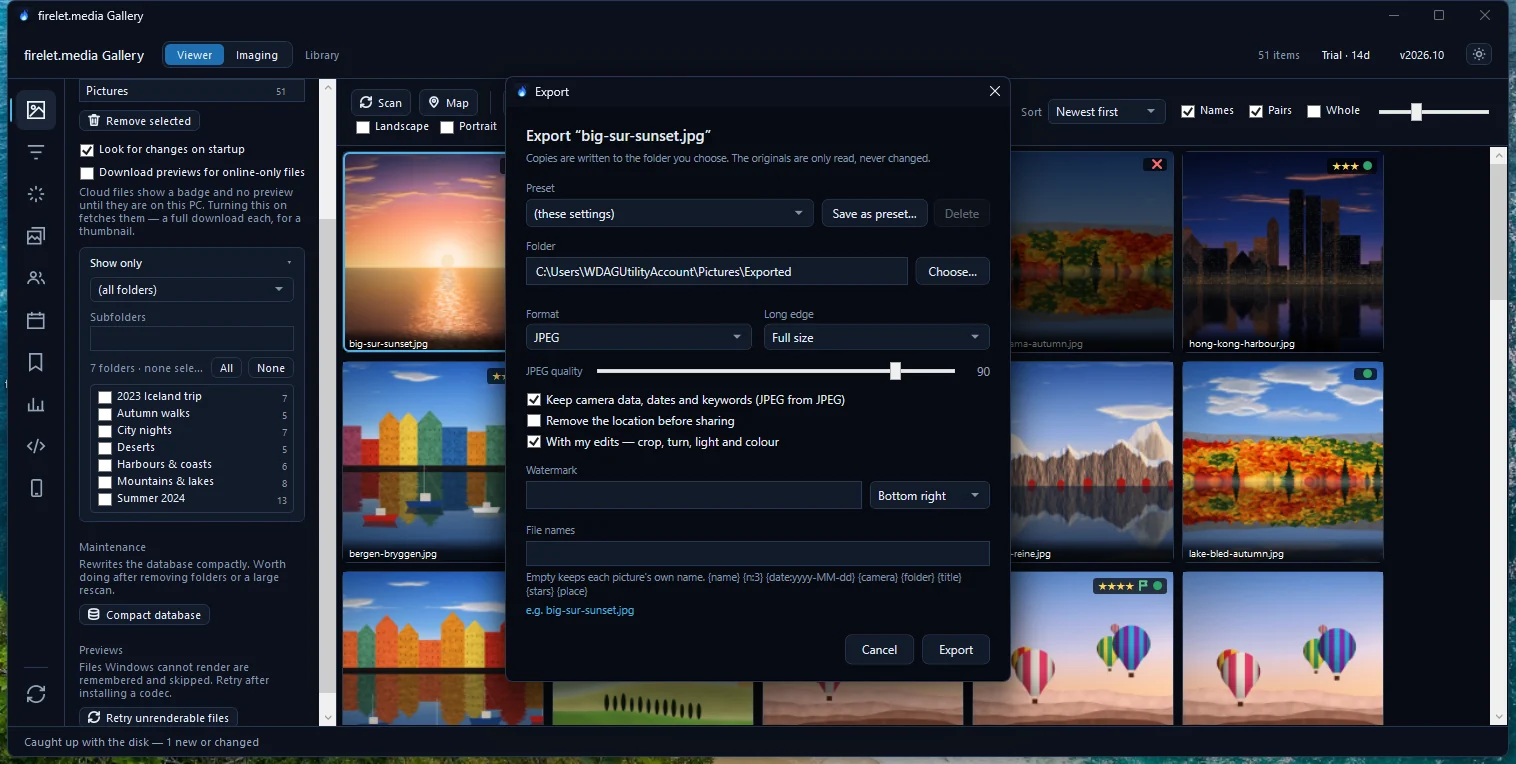
The gallery never moves your pictures into a store of its own. They stay in the folders you attached, and the gallery keeps what it knows about them in one database file. So there are two things to protect:
| What | Where it is | What it holds |
|---|---|---|
| Your photos and videos | Your own folders, listed under Library → Sources | The originals. The gallery never alters them. |
| The library database | %LOCALAPPDATA%\PictureGallery\gallery.db |
Stars, flags, colour labels, albums, keywords, people and faces, edits, corrected dates and places, the AI index and recognised text |
| XMP sidecars, if you write them | .xmp files beside each picture |
Stars, labels, titles, captions, keywords, people, dates, GPS and rights |
You don't need to back up the AI models (you can download them again), the webview folder or the logs. Your licence doesn't need backing up either: your key is in your account, and you can activate again at any time.
Steps: back up your photo folders
- Press Alt+1 and look at the Sources list. Every folder listed there is one to back up.
- Connect a backup drive, such as an external USB drive.
- Copy each source folder to the backup drive with the tool you already trust: Windows File History, a backup program, or a plain copy in File Explorer.
- Repeat after every import or batch of new photos, or let your backup tool run on a schedule.
Your backup tool sees ordinary folders and files, so it needs no special settings.
Steps: back up the library database
- Close firelet.media Gallery.
- Press Win+R, type
%LOCALAPPDATA%\PictureGalleryand press Enter. - Copy
gallery.dbto your backup drive, ideally with the date in the name, such asgallery-2026-10-01.db. - Open the gallery again.
Write ratings and keywords to XMP sidecars too
XMP sidecars put your work beside the pictures themselves, so every folder backup carries it and other programs can read it. The gallery writes them only when you ask.
- Press Alt+4 to open Albums & keywords.
- Expand XMP sidecars.
- Click Write changed pictures, or select some pictures and click Write the selection.
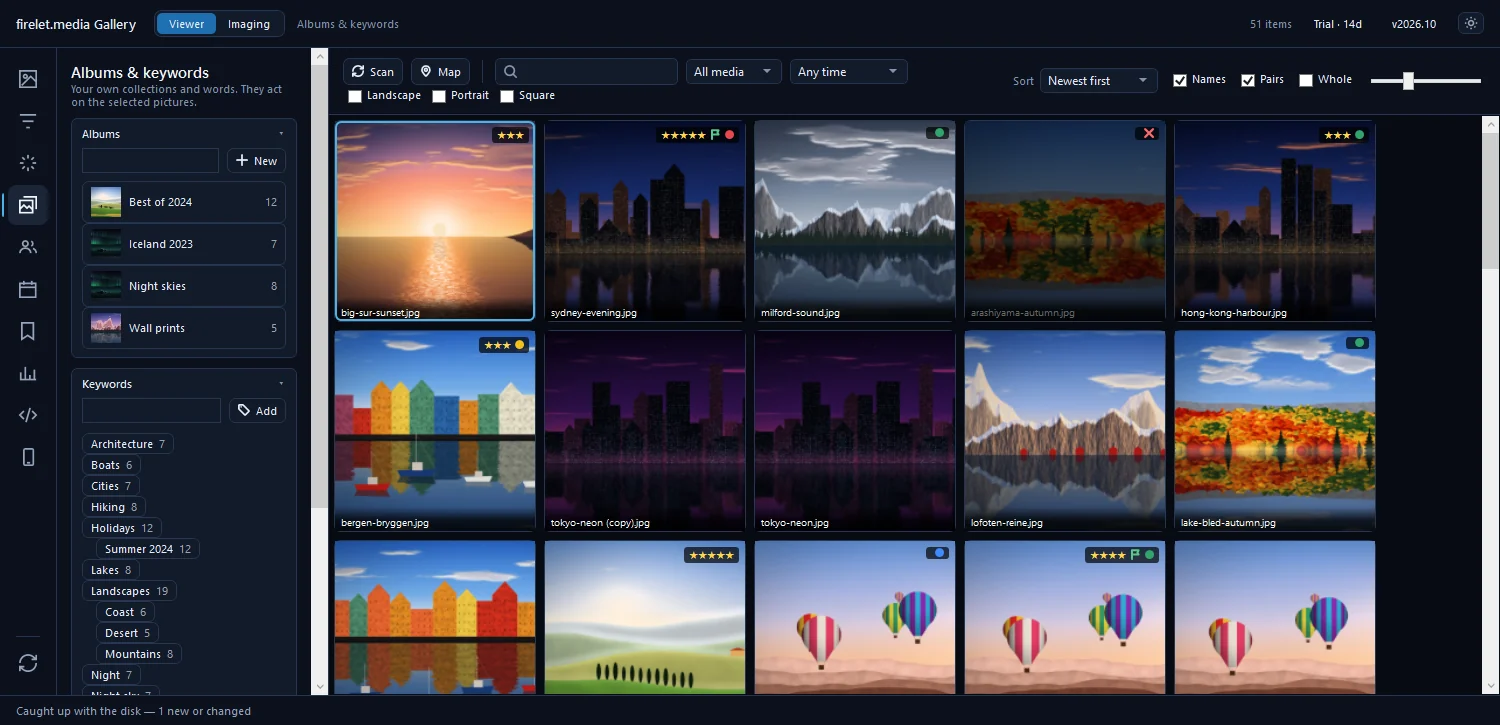
You can also right-click pictures and choose Write metadata to XMP. The sidecars hold stars, labels, rejects, titles, captions, keywords and people, and existing sidecars are merged, never replaced. Your pictures themselves are never changed.
XMP doesn't carry everything: Pick flags, albums, edits and the AI index stay only in gallery.db. That is why you back up both.
Restoring on a new computer
- Copy your photo folders back, keeping the same drive letters and folder paths if you can.
- Install firelet.media Gallery, open it once, then close it.
- Copy your saved
gallery.dbinto%LOCALAPPDATA%\PictureGallery\, replacing the new one. - Open the gallery and activate your licence.
If the folders have to live at different paths, it isn't guaranteed that a copied database finds them. In that case attach the folders at their new location and use Albums & keywords → XMP sidecars → Import from XMP, which reads stars, labels, keywords and captions for pictures that have none yet. Then run Index library in the AI panel again. How to move your licence to a new computer covers the licence side.
A simple 3-2-1 plan
A well-tried rule for photos you can't replace is 3-2-1: three copies, on two different drives, with one kept somewhere else.
- Copy 1: your photo folders on your PC, where the gallery reads them.
- Copy 2: a backup drive at home, updated after each import, with a recent
gallery.db. - Copy 3: a second drive kept at another address, or an off-site backup service you choose, updated every month or so.
Because the gallery never alters your originals, a restored folder is exactly the photo you took. For more on that, see does firelet.media Gallery change my original photos?, and for a longer plan, build a family photo archive that lasts.
Questions people ask
Does firelet.media Gallery back up my photos for me?
No. It has no cloud and no built-in backup job. Your photos stay in your own folders, so back them up with the tool you already use.
Where is the library database?
In %LOCALAPPDATA%\PictureGallery\gallery.db. It holds your stars, flags, labels, albums, keywords, people, edits and the AI index; copy it while the gallery is closed.
Can other apps read my ratings and keywords?
Yes, if you write them to XMP sidecars from Albums & keywords > XMP sidecars. The .xmp files sit beside the photos and get backed up with them.
Was this article helpful?
Thank you — that is counted, and nothing else about you is. Still stuck? Ask a person.