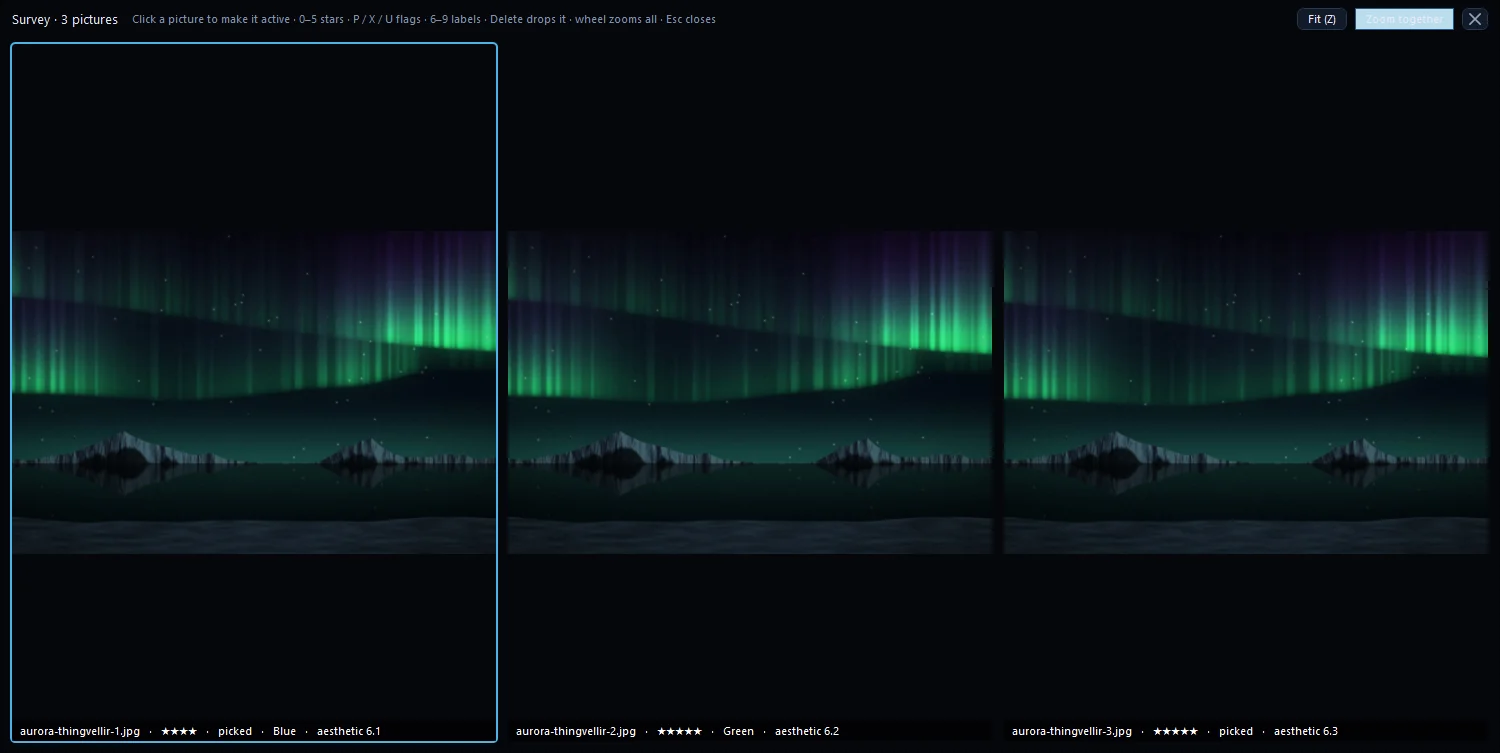
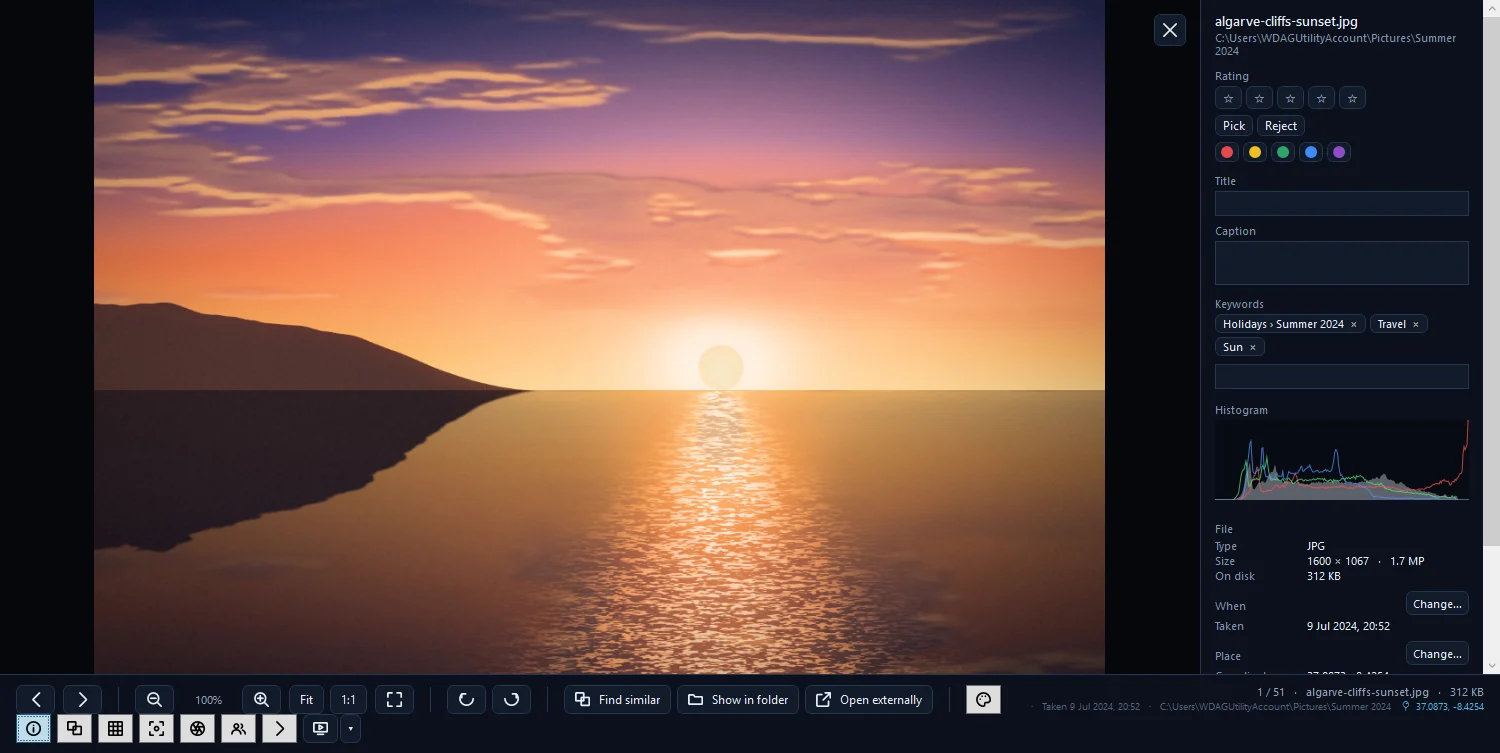
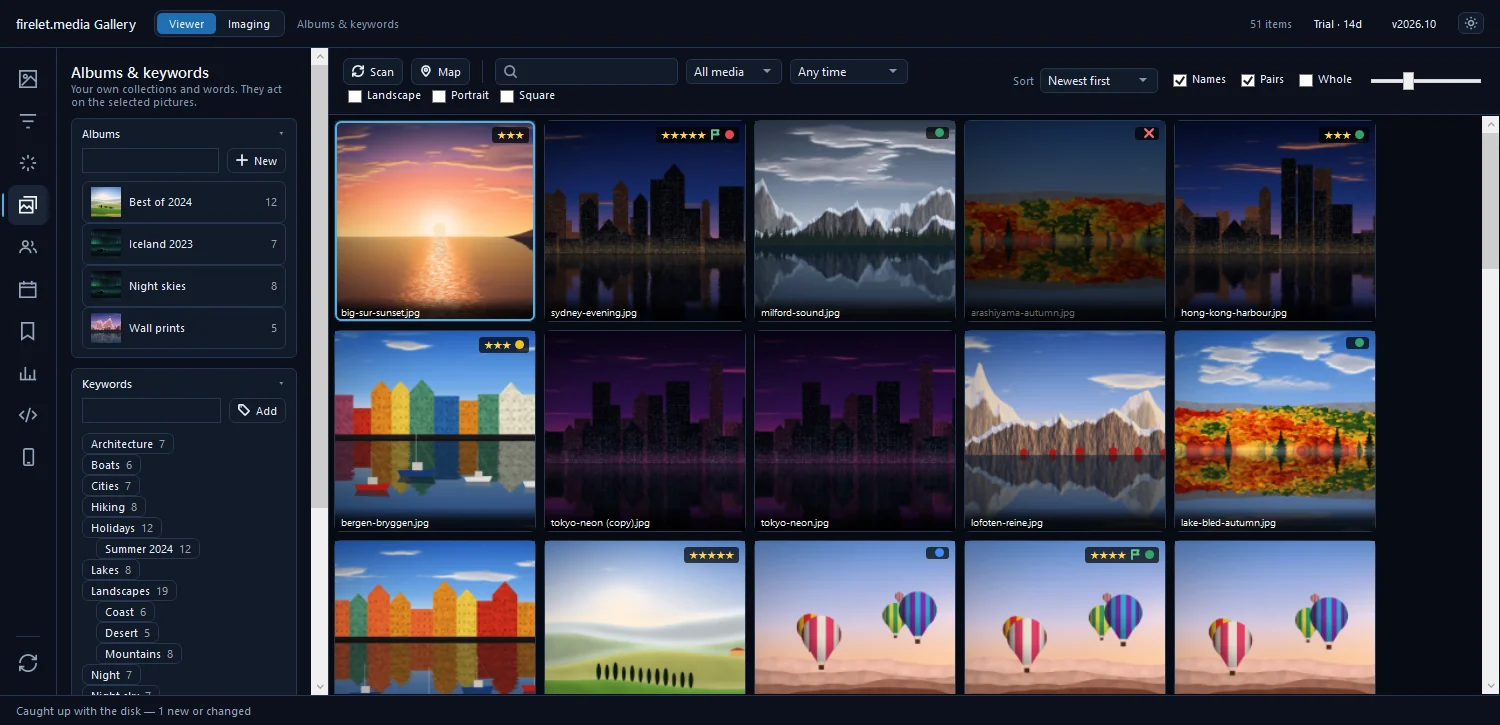
How to find and remove duplicate photos
Use AI > Identical copies for byte-for-byte duplicates and AI > Duplicates for resized or re-saved copies. Nothing is deleted until you decide what goes.

On this page
To find duplicate photos in firelet.media Gallery, open the AI panel (Alt+3). Identical copies finds byte-for-byte copies saved under other names or folders, and Duplicates finds resized or re-saved copies. Neither tool deletes anything. They only flag the extras as rejected, so you can review them and move them to the Recycle Bin yourself.
Two kinds of duplicate: identical files and near-duplicates
Duplicates pile up in two ways, and the gallery has a tool for each:
| Identical copies | Duplicates | |
|---|---|---|
| Finds | The very same file, byte for byte, under another name or in another folder | Copies that were resized, re-compressed or lightly edited, which a checksum would miss |
| How it checks | File size, then the first 64 KiB, then a full SHA-256 checksum | How alike the pictures look, from the AI index |
| Needs | Nothing extra | The AI model and Index library |
| Then | Keep one of each, reject the rest | You review each pair and reject the copy you don't want |
Online-only cloud files are never downloaded just to be compared.
Steps: find identical copies
- Press Alt+3 to open the AI panel.
- Expand Identical copies.
- Click Find identical copies.
- Look through the groups it lists. Each group is one picture that exists more than once.
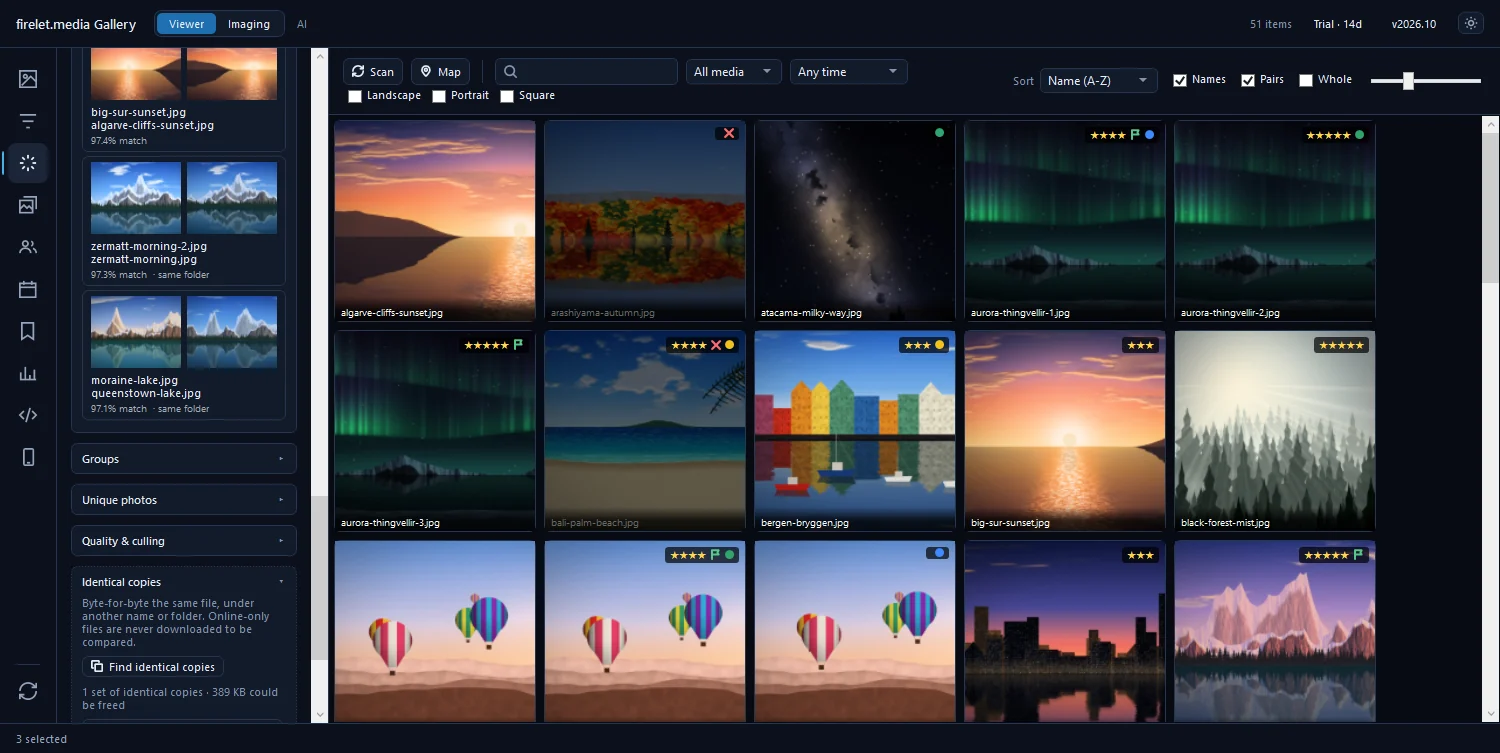
Keep one of each, reject the rest
Click Keep one of each, reject the rest to tidy every group at once. In the app's words: "The copy kept takes the others' stars, keywords and albums; the rest are flagged, not deleted".
The gallery chooses which copy to keep in this order:
- the copy with the highest star rating;
- then the one with more keywords and albums, the copy you have been working with;
- then one not named like a copy, such as "Copy of…", "- Copy", "(1)" or a folder called "Backup";
- then the one with the shorter path, nearer the top of its folder.
If any copy was marked as a pick, the kept copy is marked as a pick too. Nothing leaves your disk at this stage.
Steps: scan for duplicates (near-identical)
Near-duplicates need the AI model and index. If you haven't set them up, see how to index your library for AI search.
- In the AI panel, expand Duplicates.
- Choose a threshold (see the table below). Near-identical (0.97) is the default.
- Click Scan for duplicates.
- Click a pair in the list, shown as "{x}% match · same folder" or similar, to open it in the viewer.
- Press X on the copy you don't want to keep. That marks it as rejected.
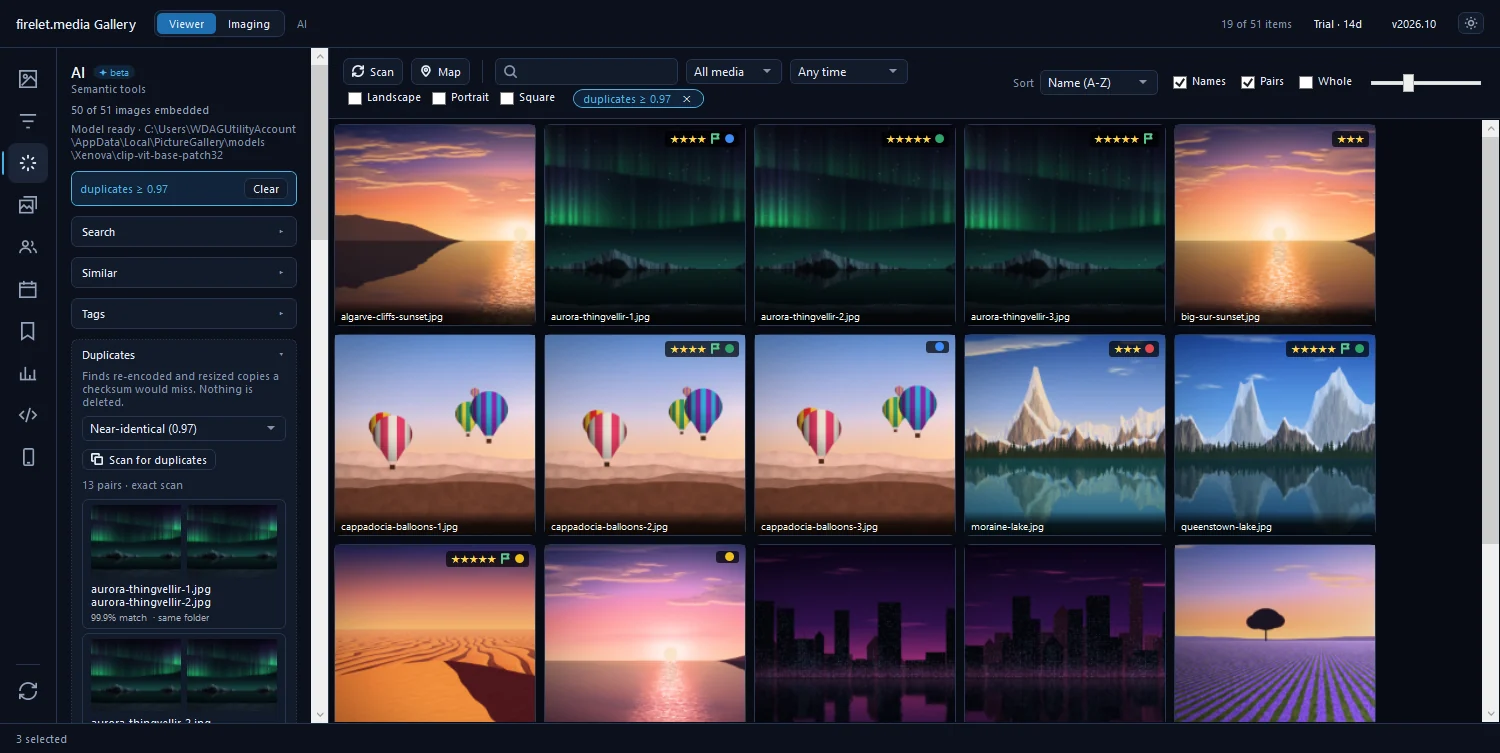
While the scan's result is shown, the toolbar chip reads, for example, "duplicates ≥ 0.97". Click its ✕ to return to the whole library. To look at two copies side by side, select both tiles and press C for Compare.
Choosing the threshold
| Threshold | How strict |
|---|---|
| Identical (0.99) | Strictest: only pairs that look practically the same |
| Near-identical (0.97), default | Catches resized and re-compressed copies |
| Very similar (0.95) | Looser: more pairs, including lightly edited copies |
| Similar (0.90) | Loosest: also pictures that are merely alike |
Start with the default. Lower thresholds find more, but they also list pictures that are merely alike, such as two frames from the same burst. For those, pick the best shots with the quality check and bursts is the better tool.
Reviewing rejects and moving them to the Recycle Bin
When you're happy with what has been rejected, remove the extras in one go.
- Press Alt+2 to open Filters and expand Rating & labels.
- Set the flag drop-down to Rejected. Only rejected pictures remain in the grid.
- Look through them once more. To keep one after all, select it and press U to clear its flag.
- Press Ctrl+A to select them all.
- Press Del, or right-click and choose Move to Recycle Bin, and confirm.
The files go to the Recycle Bin, along with any XMP sidecar, so you can still restore them from there. More about flags is in how to rate, pick, reject and colour-label photos.
Questions people ask
Will it delete my photos automatically?
No. The duplicate tools only list and flag. Keep one of each, reject the rest marks the extras as rejected; you delete them yourself later, and deleting sends them to the Recycle Bin.
What is the difference between Identical copies and Duplicates?
Identical copies are byte-for-byte the same file under another name or folder. Duplicates uses the AI index to find re-encoded, resized or slightly edited copies.
Which copy is kept?
The one you rated highest, then the one with more keywords and albums, then one not named like a copy, then the one with the shorter path. It takes the others' stars, keywords and albums; the rest are flagged, not deleted.
Was this article helpful?
Thank you — that is counted, and nothing else about you is. Still stuck? Ask a person.