How to find a photo by describing what's in it
Open the AI panel, type a description such as 'sunset over the sea' and press Enter. The on-device model ranks your photos by how closely they match.
On this page
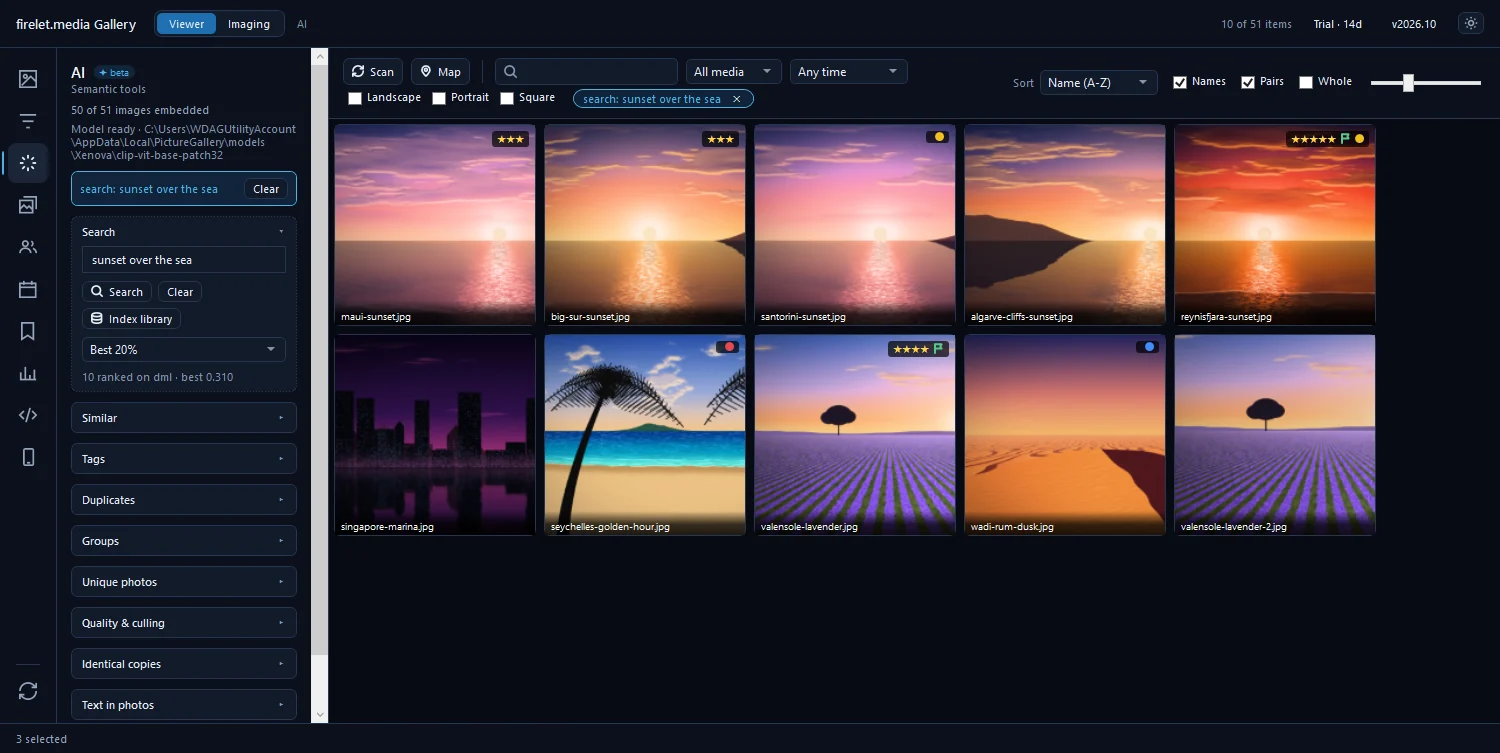
To search photos by description in firelet.media Gallery, open the AI panel (Alt+3), type what you remember, such as "dog on the beach" or "sunset over the sea", and press Enter. The grid reorders so the closest matches come first. It all runs on your own PC. The first time, download the AI model once and run Index library.
What AI search is (and that it runs on your PC)
AI search finds pictures by what is in them, not by their file names or the keywords you typed. A model called CLIP turns each picture into a compact summary, and turns your words into the same kind of summary, so the gallery can rank every photo by how well it fits your description. You don't need to have tagged anything.
- It runs on your computer. On Windows it uses your graphics card when it can and falls back to the processor automatically. The results are the same; only the speed of indexing differs.
- Your photos are never uploaded. The only time the AI touches the internet is the one-time model download.
- It is marked "✦ beta" in the panel while it is being refined.
This is different from the search box on the toolbar, which matches names, folders, keywords, places and text read from pictures. For words printed in photos, see how to find photos by the text in them.
Before you start: download the model and index the library
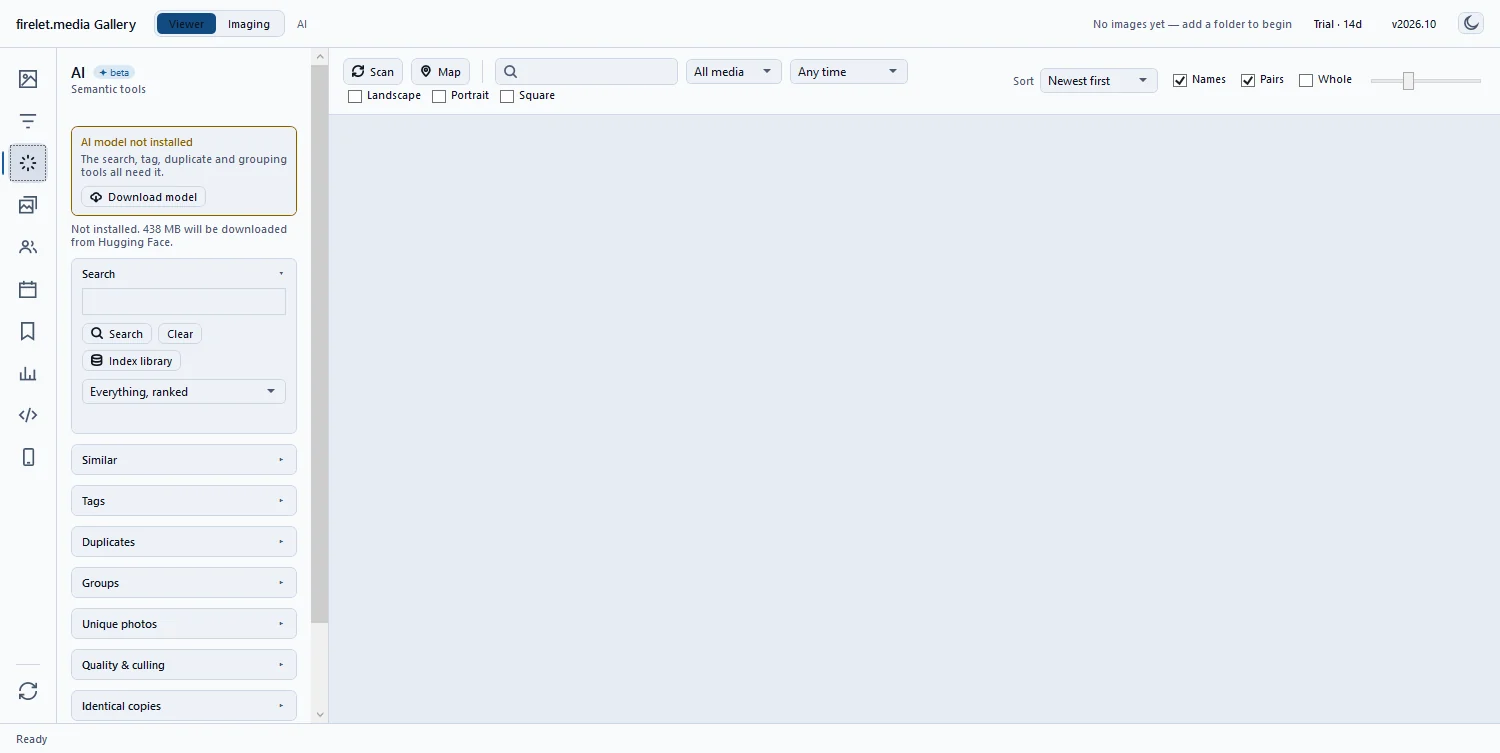
The model is not bundled with the installer. Open the AI panel and, under "AI model not installed", click Download model. The panel explains: "Not installed. 438 MB will be downloaded from Hugging Face." It is fetched once, checked against a pinned checksum, and resumes if the connection drops.
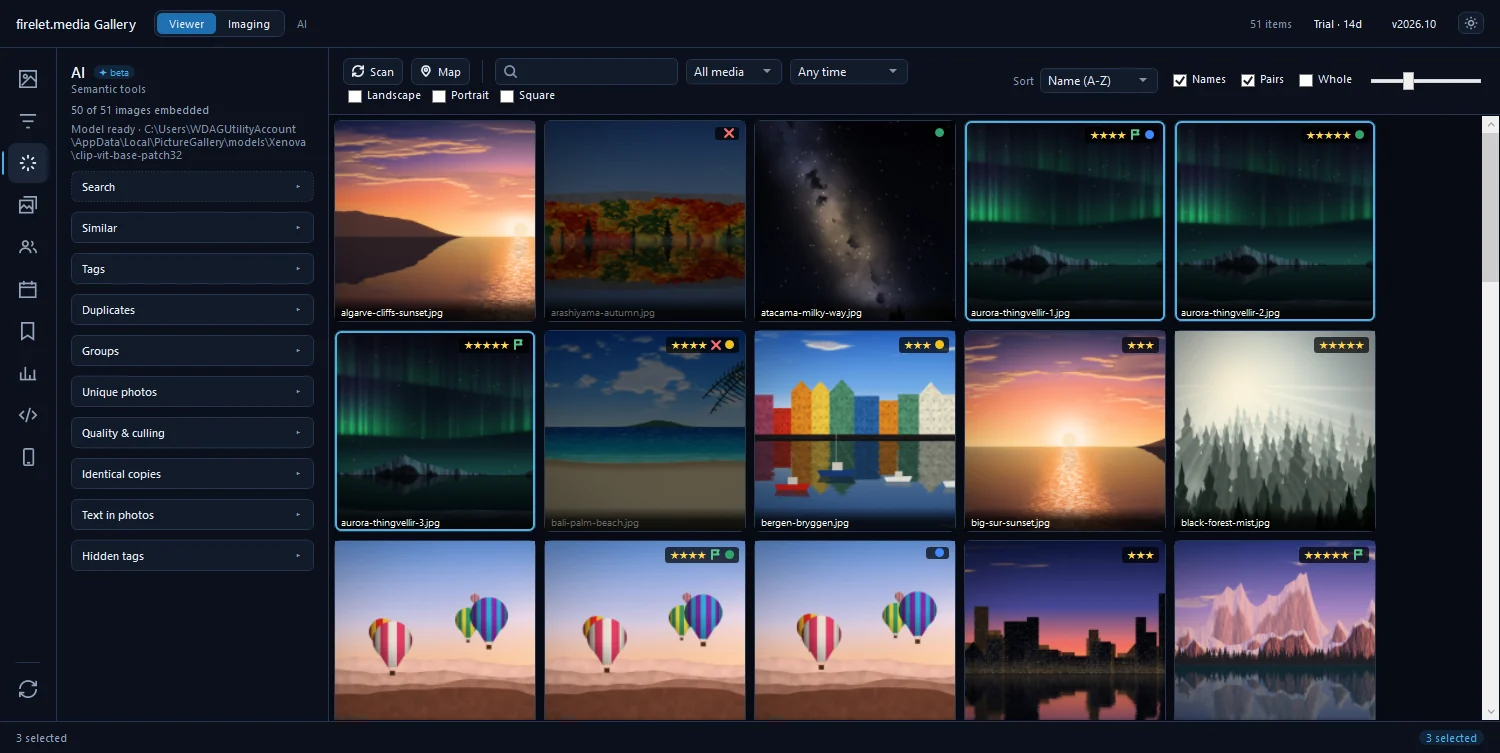
Then click Index library. The gallery works through your pictures and shows progress such as "{n} of {m} images embedded". Videos are included through a frame from each one; online-only cloud files are skipped. When you add new photos later, press Index library again: it only does the pictures that are missing. How to index your library for AI search has more detail.
Steps: describe the photo and press Enter
- Press Alt+3 to open the AI panel.
- Open the Search section.
- Click in the search box ("Describe the photos, then press Enter").
- Type a short description in English, for example
sunset over the sea. - Press Enter or click Search.
- Look at the top of the grid: the best matches come first, and the rest follow in order.
A search reorders the whole library rather than hiding anything, so the photo you want is usually near the top even if the description is loose. Pictures that have not been indexed yet cannot be ranked; the status line then says how many are "not shown, not indexed yet".
Make results stricter with How strict
How strict decides how much of the ranking stays in the grid:
| Setting | What you see |
|---|---|
| Everything, ranked (default) | Every picture, best matches first |
| Best 20% | The top fifth of the ranking |
| Best 5% | The top twentieth |
| Best 1% | Only the very closest matches |
| Best 100 | The hundred closest pictures |
Start with the default. Switch to Best 5% or Best 100 when you want a short list, for example to add the results to an album.
Refine with filters, dates and folders
An AI search works together with every other filter. Whatever the grid is already limited to is what gets ranked:
- Pick a period from the date drop-down on the toolbar, such as Last year or Custom range….
- Choose Photos only or Videos only.
- Limit the search to one folder with Show only in the Library panel.
- Add stars, flags, location or camera filters from the Filters panel (Alt+2).
While a search is active, its ranking replaces the normal sort order. See how to sort and filter your photo library for the filters themselves.
Tips for good descriptions
- Write in English. Other languages are poorly understood by the model.
- Describe what you would see: the subject, the setting, colours, the time of day. "Red boat in a harbour at night" narrows better than "holiday".
- Add one detail at a time. If "mountain lake" returns too much, try "mountain lake with a wooden jetty".
- Found one good picture? Right-click it and choose Find similar images, or press S in the viewer, to see more like it.
Clearing the AI result
While a search is active, a chip on the grid toolbar shows it, for example "search: sunset over the sea". Click its ✕ ("Clear the AI result"), or press Clear in the Search section, to return to your normal sort and the whole library.
Questions people ask
Are my photos sent anywhere for AI search?
No. The model runs on your computer and the index is stored locally. The only download is the model itself (438 MB, once, from Hugging Face), when you press Download model.
Why does it say the library needs indexing?
AI search compares your words with a summary of each picture, which Index library creates. New photos need indexing before they appear in AI results.
What does How strict do?
It chooses how much of the ranking to keep: Everything, ranked, or only the Best 20%, 5%, 1% or the best 100.
Which language should I type in?
English. The model understands English descriptions; other languages are poorly understood.
Was this article helpful?
Thank you — that is counted, and nothing else about you is. Still stuck? Ask a person.