HEIC photos won't open on Windows? Here's the fix
iPhone photos arrive as HEIC, which many Windows PCs can't decode out of the box. Add the HEIF and HEVC extensions and they show like any JPEG.

On this page
If HEIC photos won't open on Windows, the missing piece is a decoder, not a converter. Install the free HEIF Image Extension and the HEVC Video Extensions (a small one-off fee) from the Microsoft Store, then ask firelet.media Gallery to retry the files it couldn't show. Your HEIC photos then display, sort and search like any JPEG, with nothing converted.
Why HEIC photos won't open on Windows
HEIC is the High Efficiency Image format. iPhones save photos in it, and so do some other phones and cameras. It keeps roughly the same quality as a JPEG in a smaller file, which is why phones like it.
The catch is on the Windows side. A HEIC file is a container, and the picture inside iPhone HEIC files is compressed with HEVC, the same method used for high-efficiency video. Windows needs two separate pieces to open it:
- the HEIF Image Extension, which understands the container, and
- the HEVC Video Extensions, which decode the picture inside.
Not every PC has both installed. Without them, Windows can't draw the picture, so thumbnails and previews stay blank in any program that relies on Windows to decode images.
firelet.media Gallery uses the decoders built into Windows rather than shipping its own. That keeps the program small and means one fix works everywhere on your PC. It also means the gallery can only show a HEIC photo once Windows can.
Here's what that looks like before the fix:
- In the grid, a HEIC tile shows its file extension and "no preview".
- In the viewer, a panel explains "This photo is HEIC", with a button to get the missing extension and an Open in default app button.
Either way, the photo is still in your library. It's counted, and its name, folder and date are there. Only the picture itself can't be drawn yet.
The fix: HEIF Image Extension (free) and HEVC Video Extensions
Both extensions come from the Microsoft Store. The gallery can take you straight to the first one.
- Open a HEIC photo in the gallery's viewer. Double-click its tile, or select it and press Enter.
- Click Get HEIF Image Extension — free. The Microsoft Store opens on the right page.
- Install the extension from the Store.
- In the Store, search for HEVC Video Extensions and install that too. It costs a small one-off fee.
- Close the Store and go back to the gallery.
A bonus: the HEVC Video Extensions also let Windows play videos recorded in HEVC, which many phones use. If some of your phone videos showed no preview, they may start working too. Videos show no preview or won't play covers the other video formats.
Then retry the files in your library
When Windows can't draw a file, the gallery remembers it and stops trying, so it doesn't waste time on it every time you scroll. After installing a codec, tell it to try again.
- Open the Library panel with Alt+1.
- Expand Previews.
- Click Retry unrenderable files.
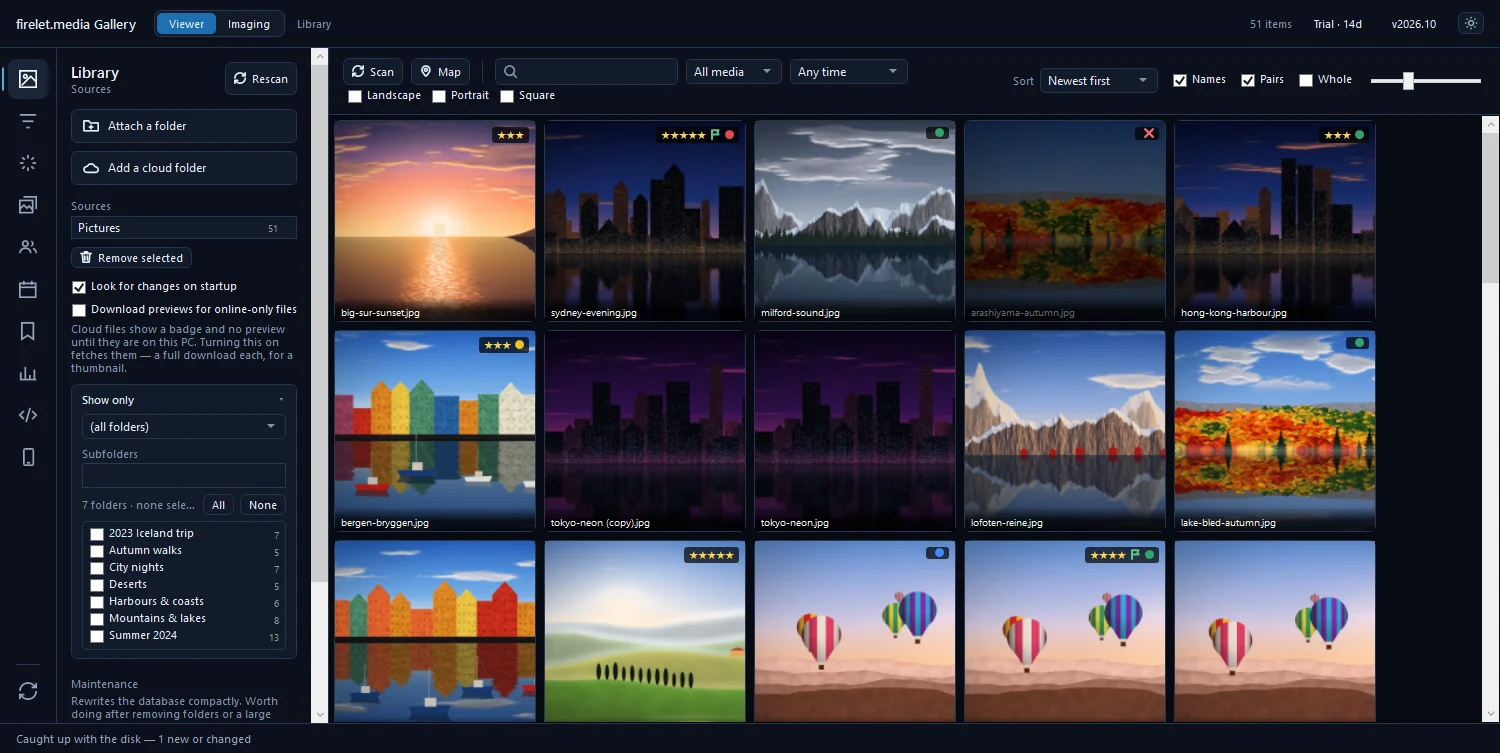
The HEIC tiles now fill in with real thumbnails, and the viewer opens them like any other photo. If some still show "no preview", check that both extensions finished installing, then restart the gallery and retry once more. The help guide for HEIC photos that don't show has further checks.
Once they display, HEIC photos work with everything else in the gallery. You can rate and label them, add them to albums, and find them by description after the next Index library. The files themselves are never touched: stars, albums and edits live in the gallery's own library, so your HEIC originals stay exactly as your phone saved them.
Need JPEGs? Export converts copies
You don't need to convert your library. The HEIC originals are smaller than JPEGs at the same quality, and once Windows can decode them there's nothing to gain by replacing them.
JPEG copies are useful when you share: some websites, older devices and relatives' computers still can't open HEIC. Export makes those copies and leaves the originals alone.
- Select the photos in the grid.
- Press Ctrl+E to open Export. It works from the grid, not from inside the viewer.
- Choose a Preset, such as Full size JPEG, or set Format to JPEG yourself.
- Choose a Long edge: Full size, or a smaller size such as 1080 px (web) for messaging.
- Click Choose… to pick a folder. It must be a different folder from the originals.
- Click Export.
Tick Remove the location before sharing if the photos contain GPS positions you'd rather not pass on. And if you've edited them in the gallery, tick With my edits — crop, turn, light and colour to bake those edits into the copies.
How to export photos explains each option, and exporting for web, print and social media suggests settings for common uses.
macOS and Linux
The macOS and Linux builds of firelet.media Gallery are being finished, so this part describes how they'll behave when available. They handle HEIC without Microsoft Store extensions. On a Mac, the grid draws HEIC tiles with the tools built into macOS. On Linux, it uses the libheif tools, which you install from your distribution's packages.
There is one difference to know about: in the first release of those builds, the full-size viewer can't open HEIC photos itself. It offers Open in default app instead, so the photo opens in your system's own viewer. Grid tiles, search, albums and everything else work as normal. What to expect on macOS and Linux lists the other platform differences.
On Windows, the steps above are all it takes. Two Store extensions and one click on Retry unrenderable files, and your HEIC photos behave like every other picture in your library.
Questions people ask
Do I need to convert HEIC to JPG?
No. Once Windows has the decoders, HEIC photos show and search like any other picture; export JPEG copies only when you need to share them.
Are the extensions free?
The HEIF Image Extension is free. The HEVC Video Extensions, which iPhone HEIC photos also need, cost a small one-off fee in the Microsoft Store.
Was this post helpful?
Thank you — that is counted, and nothing else about you is. Still stuck? Ask a person.