HEIC photos don't show on Windows: how to fix it
iPhone HEIC photos need the free HEIF Image Extension and the HEVC Video Extensions from the Microsoft Store. Install both, then Retry unrenderable files.
On this page
HEIC photos don't show in firelet.media Gallery on Windows when Windows itself has no decoder for them. Install the free HEIF Image Extension and the HEVC Video Extensions (a small one-off fee) from the Microsoft Store, then click Library → Retry unrenderable files. The gallery ships no codecs of its own, so Windows' decoders are what draw the pictures.
Why HEIC photos are not showing on Windows
HEIC (also called HEIF) is a compact photo format used by iPhones and some other phones. Inside, the pictures are compressed with HEVC, the same method used for modern video. firelet.media Gallery draws every picture with the image decoders built into Windows, and a fresh Windows installation often has none for HEIC.
Without them you will see:
- In the grid, a tile that shows only the file's extension and "no preview".
- In the viewer, a panel titled "This photo is HEIC" with a Get HEIF Image Extension — free button and Open in default app.
The files are still in your library, with their names, dates and folders. Only the pictures themselves can't be drawn.
There is one more thing to know. So that scrolling stays fast, the gallery remembers files Windows couldn't render and skips them. Installing a codec doesn't change that on its own: you need to tell the gallery to try again, which is the second set of steps below.
Steps: install the HEIF Image Extension (free) and HEVC Video Extensions
- Double-click a HEIC tile to open it in the viewer.
- Click Get HEIF Image Extension — free. The Microsoft Store opens at the extension.
- Install the HEIF Image Extension. It is free.
- In the Microsoft Store, search for HEVC Video Extensions and install it. It carries a small one-off fee.
Steps: Retry unrenderable files
- Press Alt+1 to open the Library panel.
- Under Previews, click Retry unrenderable files.
- Watch the status bar, which reads "Retrying {n} previously unrenderable files", and scroll back to your HEIC photos.
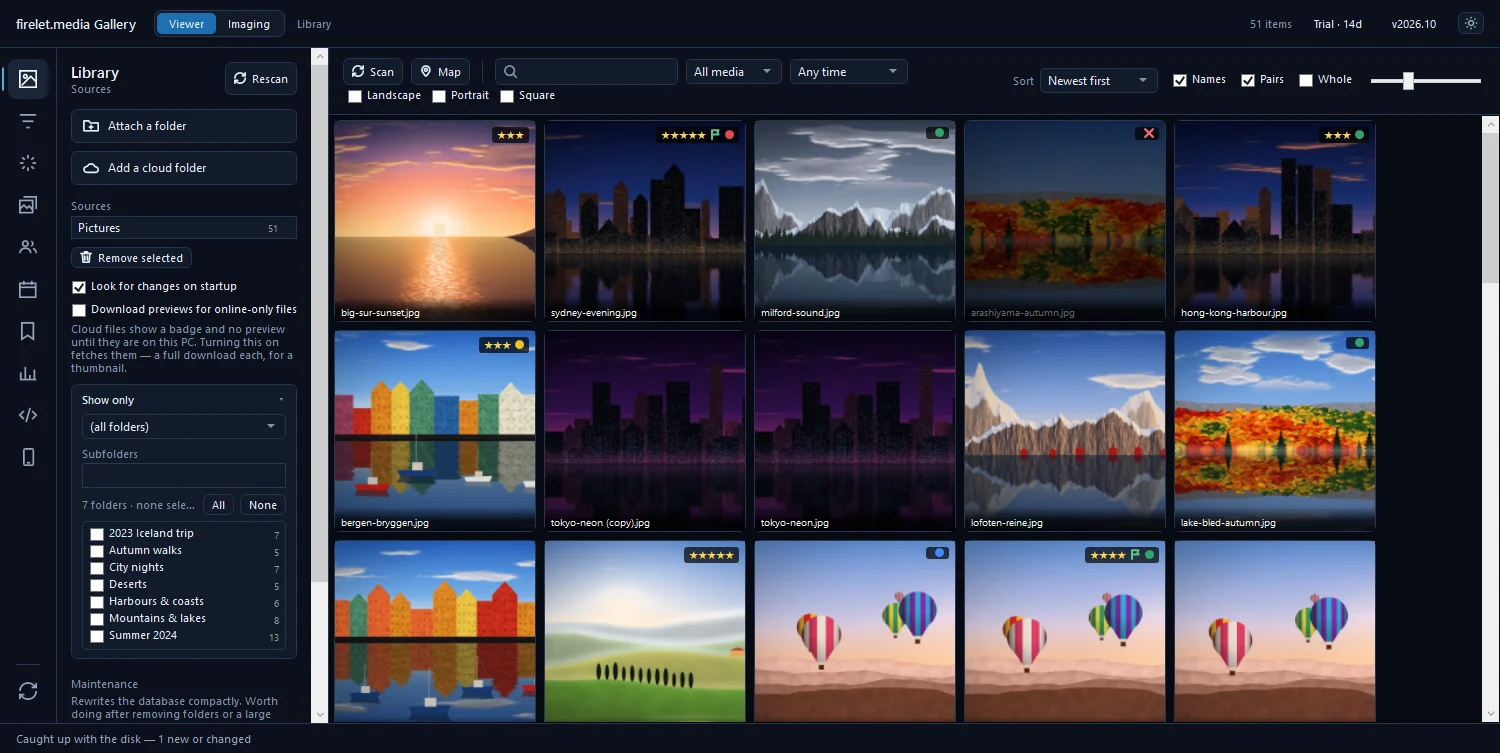
There is no need to remove and re-add the folder, or to rescan. If a tile still says "Windows could not render this file. If you have installed a codec extension since, use "Retry unrenderable files" in the Library panel.", check that both extensions finished installing in the Store, then retry once more.
Still no preview? Check the file type filter
If you can't find your HEIC photos at all, they may be filtered out rather than broken:
- Open Filters (Alt+2) and expand File types. Every extension in your library is listed with a count; make sure
.heicand.heifare ticked. - Check the media drop-down on the toolbar says All media or Photos only, not Videos only.
- Click Reset filters at the bottom of the left rail to clear everything at once.
- If
.heichas no count at all, the files haven't been scanned yet. Click Scan on the toolbar. - Photos in a OneDrive or iCloud folder that are online-only show a cloud badge and no preview unless Download previews for online-only files is ticked in the Library panel.
While you wait for a fix, Open in default app in the viewer hands the photo to whatever program Windows uses for HEIC.
For other formats and codecs, see which photo and video formats are supported. If videos are the problem, see videos show no preview or won't play. For the wider story of HEIC on Windows, read HEIC photos won't open on Windows? Here's the fix.
macOS and Linux differences
The macOS and Linux builds are being finished and aren't available yet. When they are, HEIC works differently there:
| Windows | macOS | Linux | |
|---|---|---|---|
| Grid tiles | After installing the HEIF and HEVC extensions | Built in | With the libheif tools installed |
| Full-size viewer | Opens HEIC | Offers Open in default app | Offers Open in default app |
In that build, the grid draws HEIC tiles with the system's own tools, but the full-size viewer cannot open HEIC yet and offers Open in default app instead.
Questions people ask
Why do HEIC files show a placeholder?
The gallery uses Windows' own image decoders. Without the HEIF extension Windows cannot render HEIC, so the tile shows the extension and 'no preview'.
Do I need to rescan after installing the extension?
No. Use Library > Retry unrenderable files. Files Windows could not render are remembered and skipped until you retry.
Why is the HEVC extension needed for photos?
iPhone HEIC photos are compressed with HEVC, so Windows needs both the HEIF Image Extension (free) and the HEVC Video Extensions (a small one-off fee).
Was this article helpful?
Thank you — that is counted, and nothing else about you is. Still stuck? Ask a person.