How to add your photo folders to the library
Open Library (Alt+1), click Attach a folder and pick a folder on any drive. The gallery indexes it where it is: nothing is moved, copied or uploaded.

On this page
To add a folder to your photo library in firelet.media Gallery, open the Library panel (Alt+1), click Attach a folder and choose one or more folders on any drive. The gallery scans them where they are and builds its index. Nothing is moved, copied or uploaded. Add as many folders and drives as you like, and rescan whenever new files arrive.
How the library works (folders stay where they are)
Your library is simply the list of folders you attach, shown under Sources. The gallery reads the photos and videos in them, including every subfolder, and keeps what it learns in its own database on your PC.
- Your files stay put. Nothing is copied into the program and nothing is reorganised unless you ask.
- Your files are never altered. Stars, albums, keywords, edits and corrected dates live in the gallery's database, not in the pictures.
- Most formats are read. JPEG, PNG, HEIC, WebP, TIFF and common video types are indexed. Camera RAW files are counted but not added yet; see supported file formats.
Steps: add a folder to the photo library
- Press Alt+1 or click Library on the left rail. (On the very first run the rail opens on Filters.)
- Click Attach a folder.
- Choose the folder in the "Add a folder to the library" window. You can select several folders at once.
- Confirm your choice. The scan starts by itself.
- Watch the status bar: "Scanning… {n} files found", then "Reading metadata…", then "Saving…".
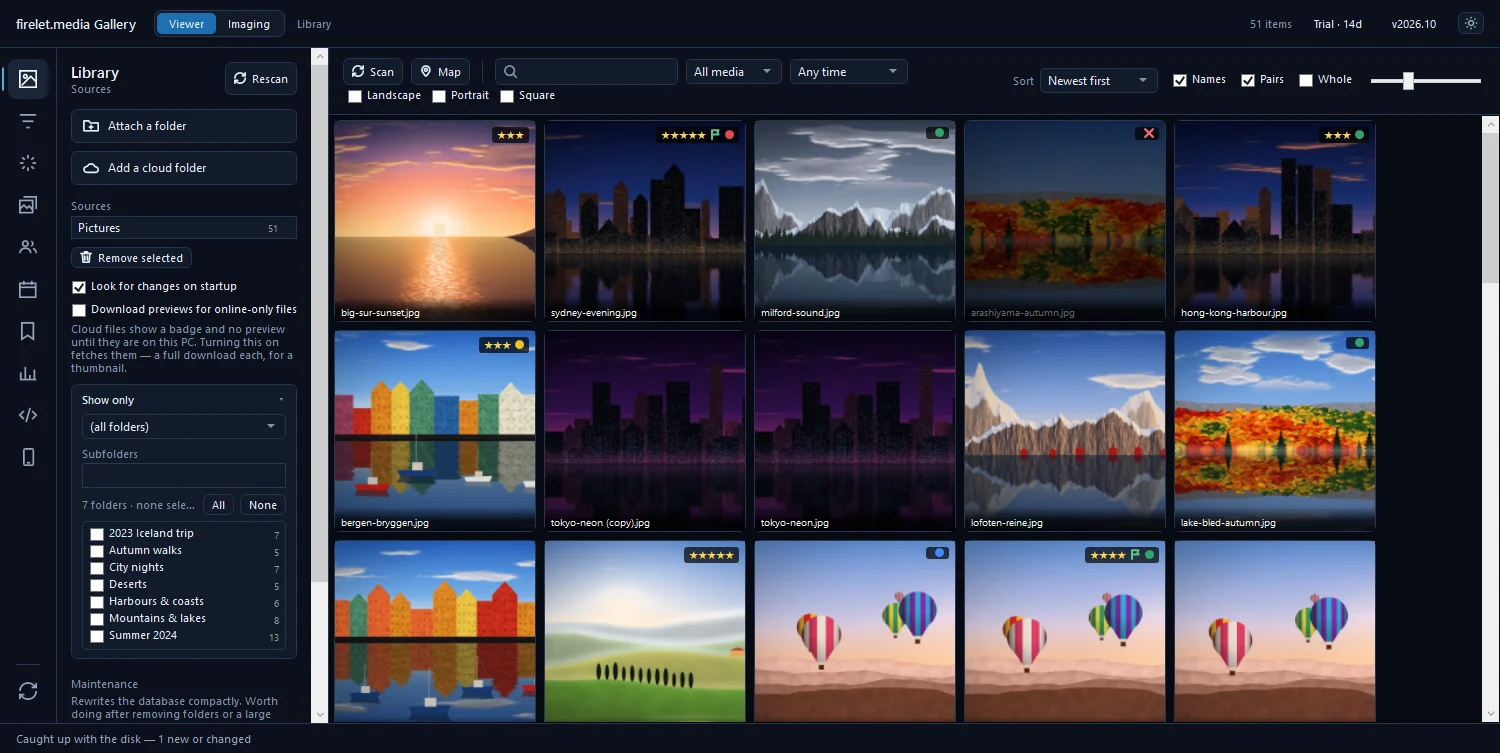
When the scan finishes the grid fills with your pictures and the title bar shows how many items the library holds.
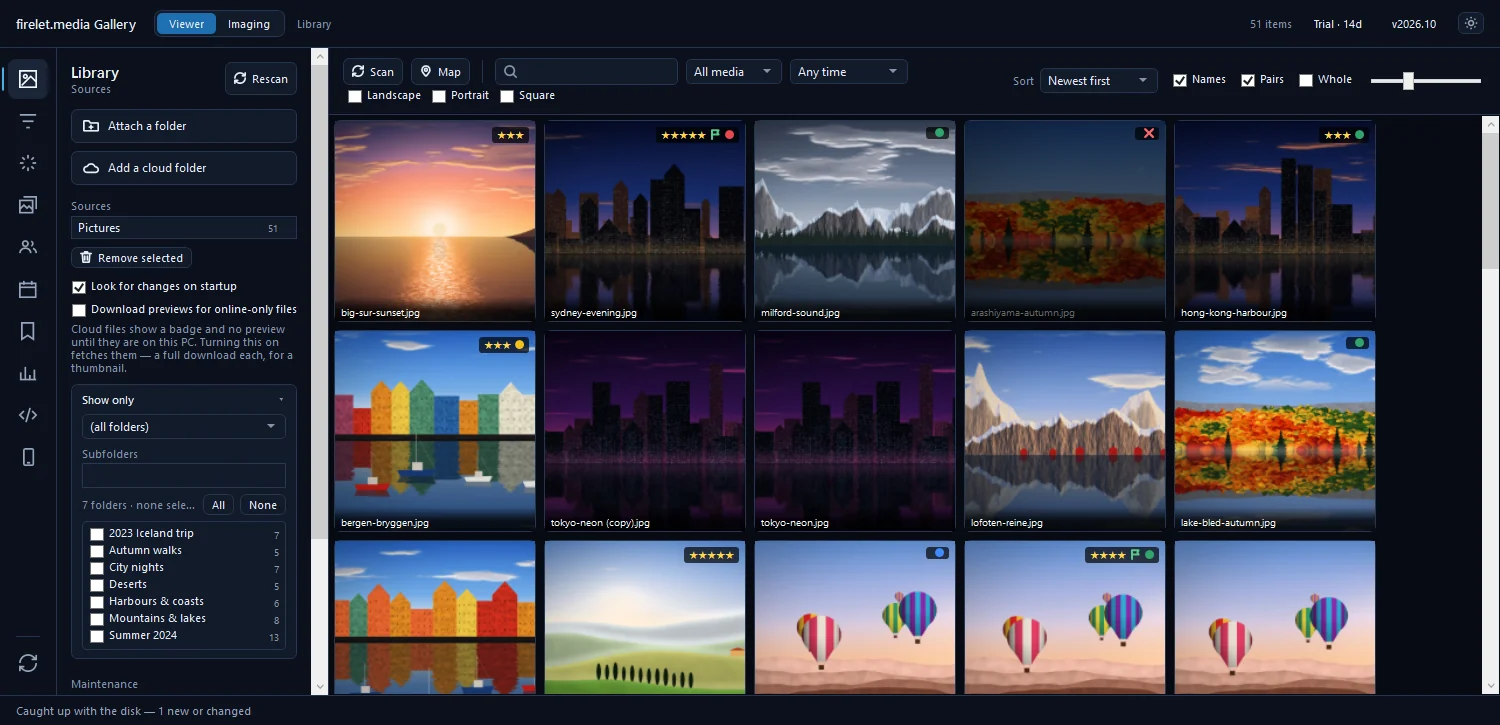
Adding more folders and drives
Repeat Attach a folder for each place your photos live: other folders, a second internal drive or an external drive. Each one appears in Sources with its picture count, or "not scanned" until its scan has run.
The gallery keeps the list tidy for you:
- Attaching a folder twice says "“X” is already attached".
- Attaching a folder inside one you already have says "“X” is already covered by “Y”".
- Attaching a parent folder absorbs the ones inside it: "“X” replaced N folder(s) inside it".
If a drive is unplugged, its pictures stay listed in the library but cannot be opened. Plug it back in and rescan.
OneDrive, Dropbox, Google Drive and iCloud folders on this PC have their own button, Add a cloud folder. See how to add cloud folders.
Showing only one folder or some subfolders
Open the Show only section of the Library panel:
- Pick one source from the "(all folders)" drop-down to see just that folder.
- Type in the Subfolders box to find a subfolder by name.
- Tick or untick individual subfolders, each shown with its count, or use All and None.
You can also right-click any tile and choose Filter by this folder. To go back to everything, use Reset filters at the bottom of the left rail. For more ways to narrow the grid, see how to sort and filter your photo library.
Rescan and Look for changes on startup
The gallery does not watch your folders while it runs. It catches up with the disk in three ways:
- Look for changes on startup is ticked by default. It "Runs in the background after the window opens".
- Rescan in the Library panel, or Scan on the grid toolbar, looks for files added or removed since the last scan.
- Scans are incremental: files whose size and modified time haven't changed are not read again, so a rescan of a large library is quick.
Removing a folder (files are not deleted)
- Select the folder in Sources.
- Click Remove selected.
- Read the confirmation and click OK.
The confirmation says it plainly: "The files on disk are not touched — only what the gallery knows about them."
Questions people ask
Are my photos copied into the program?
No. The gallery reads your folders where they are and keeps its index in its own database; the files are not moved or copied.
Can I add a folder on an external drive?
Yes. Attach it like any other folder. While the drive is unplugged its pictures cannot be opened; plug it back in and rescan.
What does Remove selected do?
It removes the folder from the library only. The files on disk are not touched, only what the gallery knows about them.
How do new photos appear?
Click Scan or Rescan, or leave Look for changes on startup ticked so the gallery catches up with the disk each time it opens.
Was this article helpful?
Thank you — that is counted, and nothing else about you is. Still stuck? Ask a person.