How to edit a photo without changing the original
Open a photo, press E or the Adjust button, and change light, colour, crop and straighten. Edits save as you go in the library; the file itself never changes.
On this page
firelet.media Gallery has a non-destructive photo editor built into its viewer. Open a photo, press E (or click Adjust) and change exposure, contrast, colour, crop and straightening. Every change is saved as you go in the gallery's library, never in the file, so the original stays untouched. When you need an edited file, export a copy with your edits applied.
How the non-destructive photo editor works
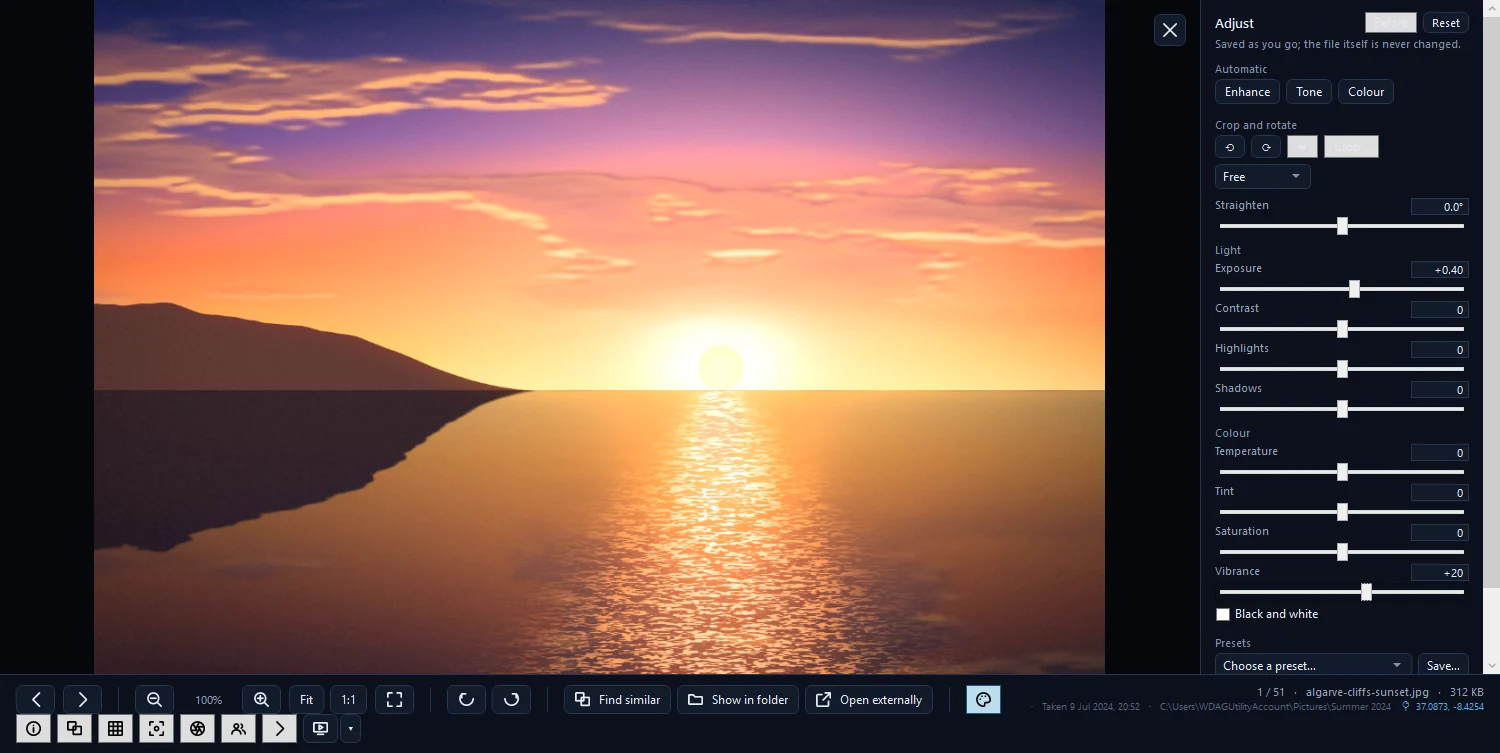
The Adjust panel's header says it all: "Saved as you go; the file itself is never changed." Your settings are stored in the library database on your PC and applied whenever the gallery shows the picture.
- You never need to save, and nothing is lost if you close the viewer.
- The original file on disk is never rewritten, so other programs still see it as it was.
- There is no step-by-step undo history. Instead, Reset takes the picture straight back to the original, and each slider can be reset on its own.
- The editor works on photos, not videos.
Steps: open the editor
- Double-click a photo in the grid, or select it and press Enter, to open it in the viewer.
- Press E, or click the Adjust button on the viewer's toolbar.
- Make your changes in the panel on the right; they are saved immediately.
- Press Esc to close the editor, and Esc again to close the viewer.
Automatic: Enhance, Tone, Colour
The three Automatic buttons are a quick start:
| Button | What it does |
|---|---|
| Enhance | "Tone and colour from the picture itself" |
| Tone | "Exposure, shadows, highlights and contrast from the picture's histogram" |
| Colour | "White balance from the picture's average colour" |
Each one sets the sliders for you, so you can fine-tune from there. You can apply them to several photos at once from the grid: select them, right-click and choose Edit → Auto enhance, Auto tone or Auto colour.
Light and Colour sliders
- Light: Exposure (−4 to +4 EV), Contrast, Highlights and Shadows. Raise Shadows to open up a dark foreground; lower Highlights to bring back a bright sky.
- Colour: Temperature (cooler or warmer), Tint, Saturation and Vibrance, plus Black and white.
- Crop and rotate: Turn left, Turn right, Mirror, Crop… (C; drag on the picture, Enter keeps it, Esc leaves it) with proportions such as Free, Original, 1:1, 4:3, 3:2 and 16:9, and Straighten from −45° to 45°.
Before, Reset and Back to the original
- Before: hold it down, or hold the backslash key \, to see the original; let go to see your edit again.
- Reset: "Back to the original — every edit removed."
- From the grid, right-click one or more photos and choose Edit → Back to the original to clear their edits in one go.
Because the file was never changed, going back is always complete: there is nothing to restore.
Presets and Copy/Paste edits
Presets store a look you want to reuse. Choose from Black and white, Vivid, Warm, Cool and Soft, or click Save… to keep your own. A saved preset holds tones and colours, not the crop. Delete this preset removes one of yours.
To match a series of photos:
- Edit one photo until you're happy.
- Click Copy edits, or press Ctrl+Shift+C.
- Select the other photos in the grid.
- Press Ctrl+Shift+V, or right-click → Edit → Paste edits.
Paste edits carries tones and colours only. To copy the crop as well, use right-click → Edit → Paste edits with the crop.
Saving an edited copy with Export
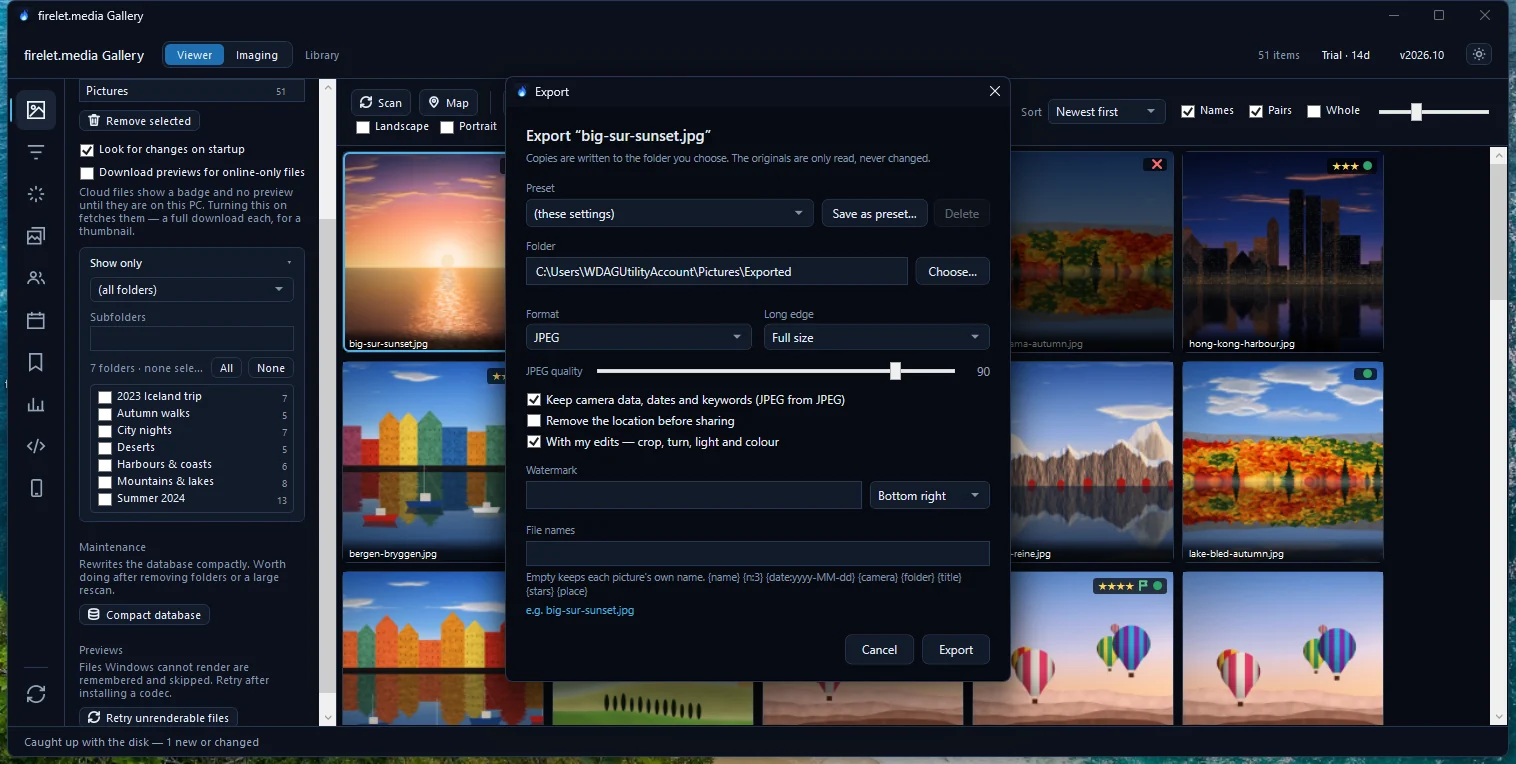
When you need an actual file with the edits in it, for printing, emailing or another program, export a copy:
- Close the viewer and select the edited photos in the grid.
- Press Ctrl+E.
- Tick With my edits — crop, turn, light and colour.
- Choose JPEG or PNG, a size and a folder, then click Export.
The copy has the edits; the original still doesn't. How to export photos explains every option, and does firelet.media Gallery change my original photos? covers what is stored where.
The editor has no red-eye, healing, sharpening, noise reduction, curves or layers; it's made for quick, safe corrections. The macOS and Linux builds (being finished) have the same Adjust panel.
Questions people ask
Where are my edits saved?
In the library database on your PC. The editor says it plainly: saved as you go; the file itself is never changed.
How do I undo all edits?
Press Reset in the editor, or right-click the tile and choose Edit → Back to the original. There is no step-by-step undo history.
How do I get a file with the edits applied?
Use Export with 'With my edits — crop, turn, light and colour' ticked. It writes a new copy and leaves the original alone.
Was this article helpful?
Thank you — that is counted, and nothing else about you is. Still stuck? Ask a person.