Back up phone photos to your PC without the cloud
Copy phone photos to your own PC with no cloud in between: Imaging → Import by cable or card today, and soon auto-sync over Wi-Fi with the free Android app.
On this page
You can back up phone photos to your PC without the cloud today. Plug the phone in, or put its memory card in a reader, and firelet.media Gallery's Imaging → Import copies only what's new, checks every copy and deletes nothing from the phone. Soon the free Android companion will do the same over your home Wi-Fi, automatically, with no cable.
Why back up phone photos to your PC without the cloud?
For most people, "backing up the phone" means an app quietly uploading every picture to a cloud account. It's easy, but it has costs. Your photos go to someone else's servers first. The free allowance fills up, so the backup turns into a monthly bill. And full-quality videos can take a long time to upload over a home connection.
Your PC is right there. It usually has far more space than the phone, it sits on the same Wi-Fi, and it doesn't charge by the gigabyte. Copying photos straight to it keeps them in your hands, and the gallery makes them searchable as soon as they land.
There's one catch, which comes at the end of this post: a copy on your PC only counts as a backup if the PC itself is backed up.
Today: import over USB with Imaging → Import
The import tool copies from memory cards, USB drives, cloud folders and phones. It works the same way for all of them.
- Unlock your phone and connect it to the PC with a USB cable. If the phone asks what the connection is for, allow access to its files.
- In firelet.media Gallery, open Imaging with Ctrl+2, then choose the Import tab.
- Under Where from, pick your phone. If it isn't listed, click Look again.
- Under Import into, click Choose folder… and pick where the copies should go.
- Click See what is new. The gallery shows a plan, such as "214 new · 1,802 already here · 3.2 GB".
- Click Import.
Import is careful by design:
- Duplicates are always skipped. Anything already in your library, or already at the destination, isn't copied again. You can run an import every week without thinking about what you did last time.
- Every copy is verified with a SHA-256 checksum, and each file keeps its original modified time.
- Nothing is ever deleted from the phone. Clearing space is a separate decision you make later.
Camera RAW files are skipped, because RAW isn't supported yet. And if your 14-day trial has ended without a licence, import is paused until you enter a key. The full guide is how to import photos from an SD card, camera or phone cable.
Coming soon: the Wi-Fi link and auto-sync
When the companion is available, the cable becomes optional. The Windows app's Devices panel (Alt+0) is where it all happens. Its hint sums it up: phones paired with this computer over Wi-Fi, with no cloud, no cable and no internet.
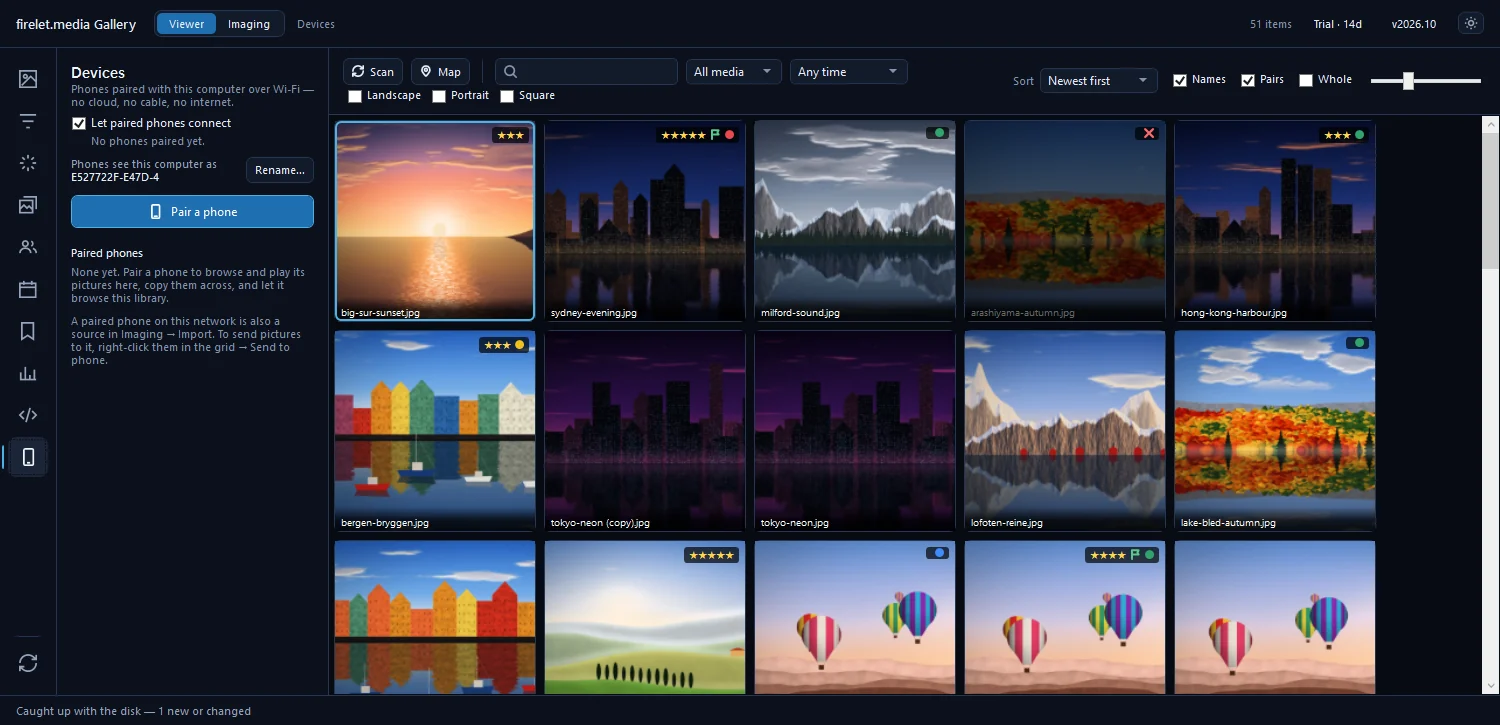
Here's how it will work:
- On the PC, click Pair a phone in the Devices panel. A QR code and a 12-character code appear, valid for 10 minutes.
- On the phone, open the companion's Devices tab, choose Pair with a computer and scan the code, or type it in.
- Back on the PC, click Settings… on the phone's card.
- Tick Copy new photos and videos to this computer whenever the phone is on this network.
- Choose Every album, or Only these: to pick the albums you care about.
- Click Save.
From then on the PC checks every five minutes while the phone is on the same Wi-Fi, and copies anything new. The PC does the fetching; the phone never pushes anything, and auto-sync never changes anything on it. For it to run, the phone needs Visible to your computers switched on, the gallery has to be open on the PC, and the PC needs a licence or to be within its trial. By default only new pictures are copied. Tick Include the pictures that were already on the phone if you want the back catalogue too.
The link stays on your own network. Pictures travel only between your devices, encrypted, and nothing goes through the internet. That also means it can't work over mobile data, through a VPN, or on a guest Wi-Fi that keeps devices apart.
One setting is worth knowing about. In the same Phone settings window, Let this phone move pictures on this computer to the Recycle Bin is on by default. Untick it if you'd rather the phone could never remove anything from the PC. Coming soon: the Wi-Fi link between your Android phone and PC has more on what the link will do.
Where the photos land and how to find them
Both routes file new photos into dated folders, so they stay in order without any effort from you.
| Route | Where copies go |
|---|---|
| Imaging → Import | Your Import into folder, then yyyy\yyyy-MM-dd |
| Wi-Fi auto-sync | Your Import folder (or Pictures\Firelet Link if you haven't set one), then the phone's name, then yyyy\yyyy-MM-dd |
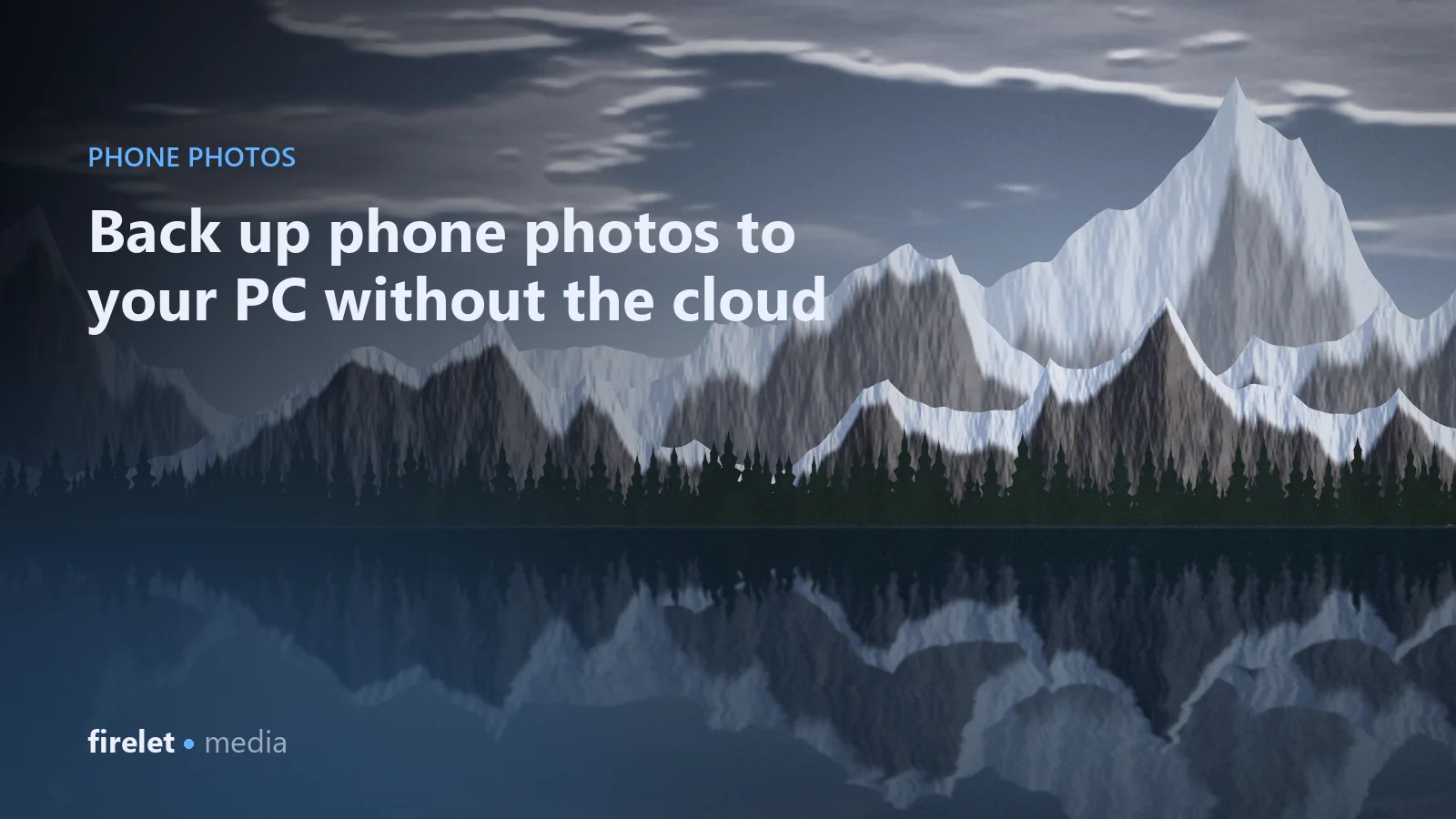
The destination becomes part of your library automatically, so there's nothing extra to attach. The new pictures show up in the grid straight away. To see just the latest batch:
- set the sort order to Newest first, or
- pick Last 7 days in the date range on the toolbar, or
- right-click one of the new pictures and choose Filter by this folder.
Everything the gallery can do works on the new arrivals: description search, faces, text in photos, albums and stars. Once the AI is set up, run Index library after an import so the new photos can be found by description.
Then back up the PC (the gallery is not a backup)
Copying phone photos to the PC moves them from one device to another. It doesn't give you a second copy of anything. If the PC's drive fails, those photos go with it, and so does everything else in the library.
A simple plan that works:
- Keep the photo folders on your PC. That's copy one.
- Back them up to an external drive with File History or any backup tool you trust. That's copy two.
- Keep a second copy somewhere other than your home, such as a drive at a relative's house. That's copy three.
Close the gallery now and then and copy its library file, %LOCALAPPDATA%\PictureGallery\gallery.db, too. It holds your albums, stars, people and edits. How to back up your photos and your firelet.media library explains each step.
With the backup in place, you can safely clear the phone. Phone storage full? Move your photos to your PC over Wi-Fi walks through that part.
Questions people ask
Does it work with iPhone?
There is no iPhone app: the Wi-Fi link and the companion are Android only. If your iPhone photos already sync to an iCloud Photos folder on your PC, you can add that folder with Library → Add a cloud folder.
Is the Android app available?
Not yet; it is coming soon, with no date announced. The PC side of the Wi-Fi link is already in the Windows app 2026.10, and importing by cable or memory card works today.
Was this post helpful?
Thank you — that is counted, and nothing else about you is. Still stuck? Ask a person.