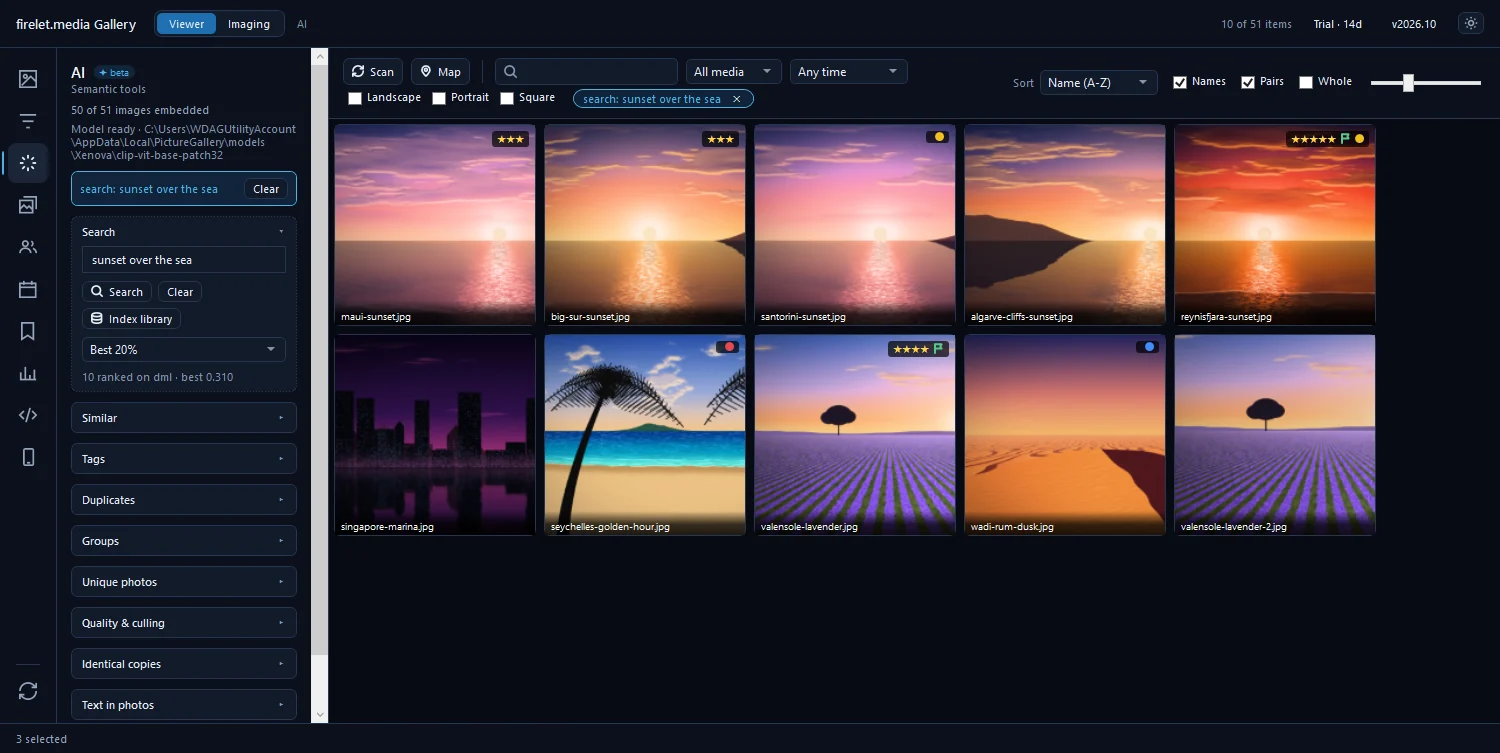
Phone storage full? Move your photos to your PC over Wi-Fi
Free up phone space without paying for cloud storage: copy photos to your PC with Imaging → Import, check they arrived, then delete them from the phone.

On this page
When your phone storage is full of photos, move them to your PC instead of paying for cloud space. Copy them with firelet.media Gallery's Imaging → Import, check that every picture arrived, back them up, and only then delete them from the phone. Import never deletes anything itself, so the phone is only cleared when you're sure.
Why photos fill phone storage
Phone cameras keep getting better, and better pictures take more room. Every high-resolution photo, burst, motion photo and minute of video adds up. Add screenshots and the pictures that arrive through messaging apps, and a phone that felt roomy last year is suddenly refusing to take another shot.
The usual answers are to pay for more cloud space, or to delete pictures you'd rather keep. There's a third: your PC almost certainly has far more space than your phone, and it's already in the house. Move the photos there, and they become easier to find, not harder, because the gallery can search them by what's in them.
Step 1: connect the phone by USB (or the Wi-Fi link when available)
Today, use a cable. Unlock your phone and connect it to the PC with a USB cable. If the phone asks what the connection is for, allow access to its files. If your phone has a memory card, you can take the card out and put it in a card reader instead.
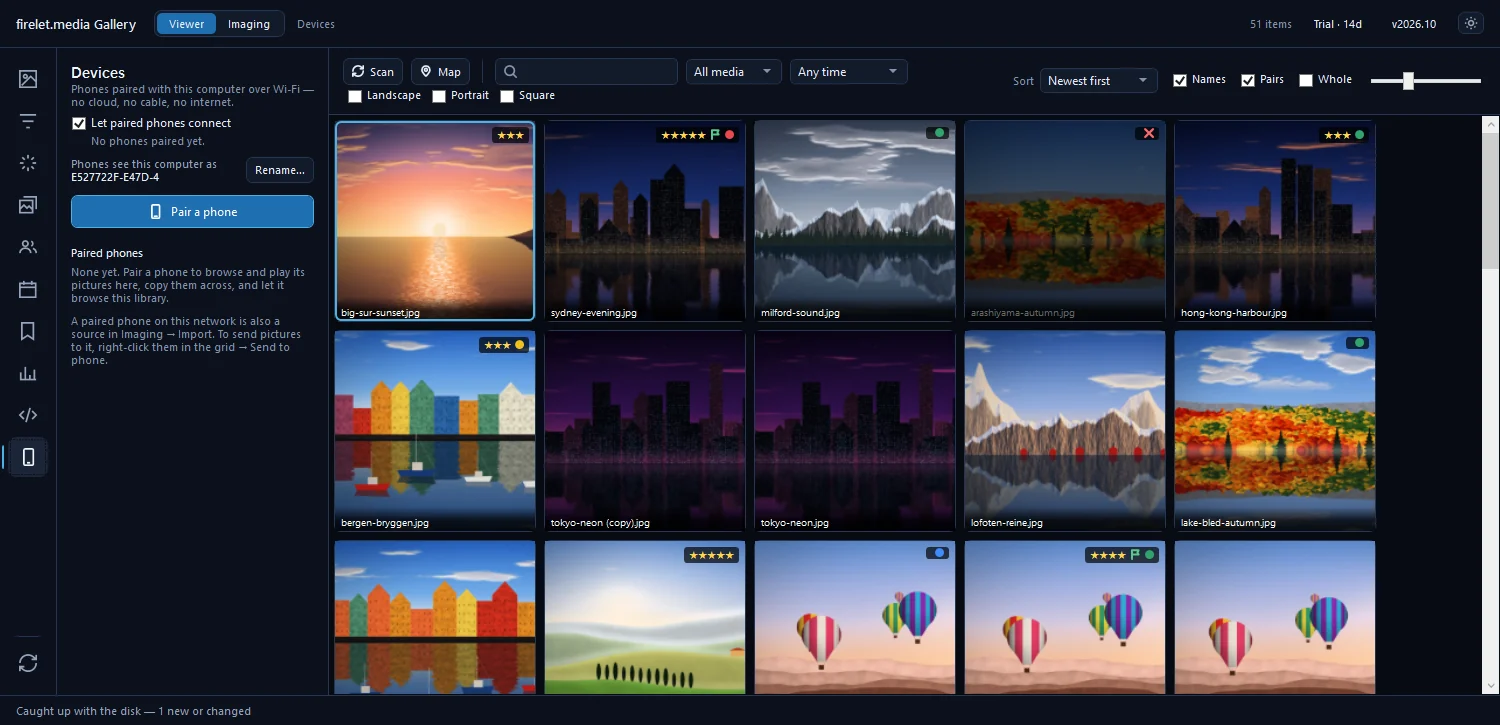
Soon, use Wi-Fi. The Windows app already includes the PC side of a private Wi-Fi link, in the Devices panel (Alt+0). When the free Android companion is available (it's coming soon, with no date yet), you pair the phone once with a code. After that, a paired phone on the same network shows up as an import source, with no cable at all. How to pair your Android phone with your PC over Wi-Fi explains the pairing.
Step 2: Imaging → Import: See what is new, then Import
The import tool is the same whichever way the phone is connected.
- Open Imaging with Ctrl+2, then choose the Import tab.
- Under Where from, pick your phone or its memory card. Click Look again if it isn't listed.
- Under Import into, click Choose folder… and pick a folder on a drive with plenty of free space.
- Click See what is new. The gallery shows a plan such as "214 new · 1,802 already here · 3.2 GB".
- Check that the size fits comfortably on the PC's drive.
- Click Import.
The copies are filed into dated folders (year, then year-month-day) inside your Import into folder. The folder becomes part of your library automatically, so the photos appear in the grid as they arrive. Anything you've imported before is skipped, every copy is verified with a SHA-256 checksum, and each file keeps its original modified time.
If you need to stop part-way, press Stop in the status bar. The files already copied stay in the destination folder, and the next import picks up the rest. Camera RAW files are skipped, because RAW isn't supported yet. The full guide is how to import photos from an SD card, camera or phone cable.
Step 3: check the copies in your library
Before anything is deleted from the phone, make sure the PC really has everything.
- Set the sort order to Newest first, so the latest pictures lead the grid.
- Right-click one of the new pictures and choose Filter by this folder, or use the date range on the toolbar to show the period you imported.
- Open a few photos and a couple of videos from different days to confirm they play and display.
- Go back to Imaging → Import and click See what is new again.
That last step is the best check of all. If everything arrived, the plan should now report nothing new to copy, because every picture on the phone is already in your library.
Then back the new pictures up. Once you delete them from the phone, the PC holds the only copy.
Step 4: delete from the phone
With the copies checked and backed up, free the space. Import never touches the phone's pictures, so this step is always yours.
Today, delete the pictures you've moved using your phone's own gallery or file manager. Many phones keep deleted pictures in a bin or a "recently deleted" folder for a while. Empty it if you need the space straight away.
When the companion is available, you'll also be able to do it from the PC. Open the phone's pictures in the device browser from the Devices panel, select what you've copied, and choose Delete on phone…. Nothing is removed until you agree on the phone itself: it shows "PC wants to delete N pictures" with Review and Refuse, followed by Android's own confirmation. This needs Android 11 or later.
Keep it from filling again
A full phone is easier to prevent than to fix.
- Make it a routine. Run the import once a week or once a month. Because it skips what you already have, it only ever copies the new pictures. A 15-minute weekly routine fits it in with the rest of your photo habits.
- Let the PC fetch new photos. When the companion is available, switch on auto-sync for your phone in Devices → Settings…. The PC then copies new photos and videos every five minutes while the phone is on your home Wi-Fi. Auto-sync never deletes anything from the phone, so you still clear it yourself, but the copies are always waiting. How to copy new phone photos to your PC automatically has the details.
- Keep your library in your pocket. The companion can browse your whole PC library over home Wi-Fi and save any picture back to the phone. Clearing the phone doesn't mean losing easy access to your photos at home.
Your phone gets its space back, your photos land somewhere with room to grow, and nothing was uploaded anywhere along the way.
Questions people ask
Does Import delete anything from the phone?
No. Import only copies, and verifies each copy; you delete from the phone yourself once you have checked.
Can I do it without a cable?
When the free Android companion is available (it is coming soon), the copy runs over your home Wi-Fi instead. The PC side is already in the Windows app.
Was this post helpful?
Thank you — that is counted, and nothing else about you is. Still stuck? Ask a person.