How to copy new phone photos to your PC automatically
With the Android companion (coming soon) paired, open the phone's Settings… under Devices and tick auto-sync: new photos copy to the PC over your own Wi-Fi.
On this page
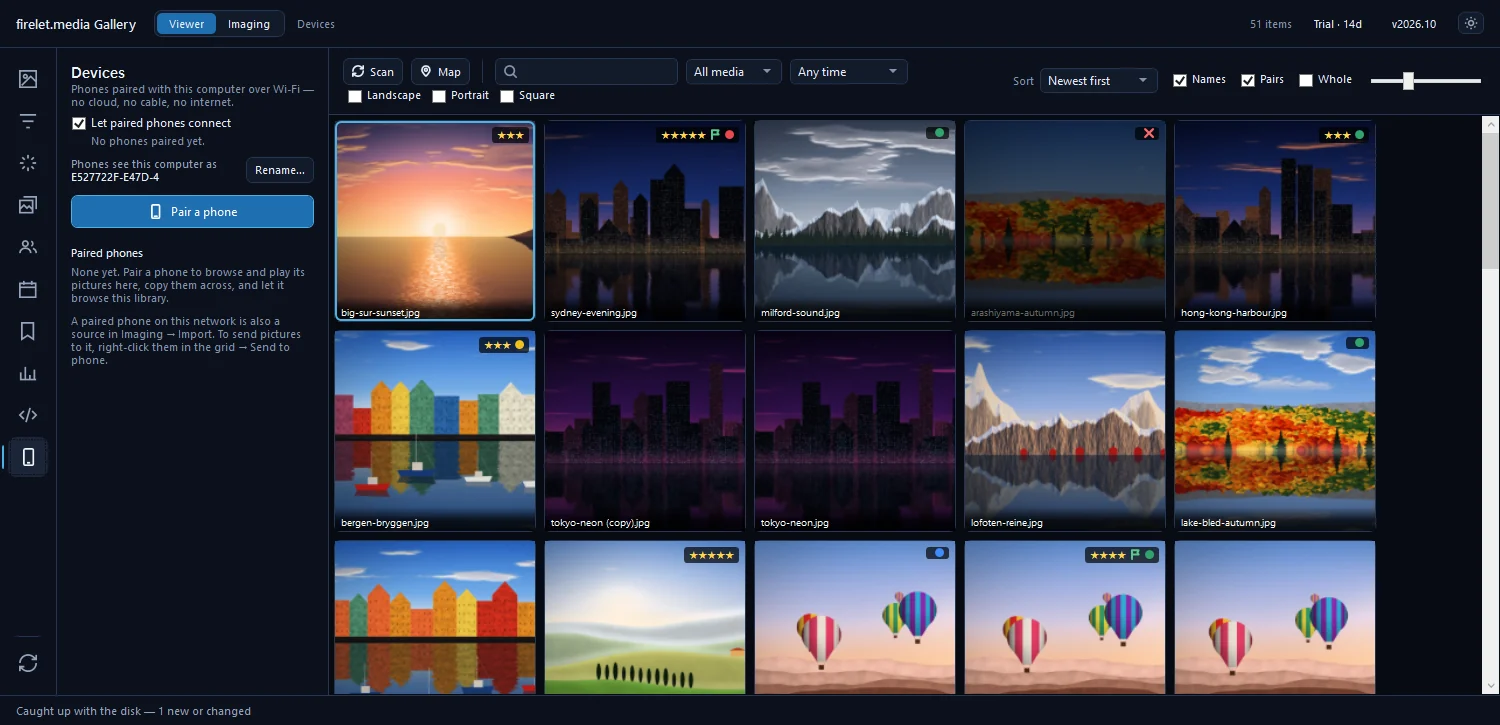
To auto sync phone photos to your PC with firelet.media Gallery, pair your Android phone, open Devices (Alt+0), click Settings… on the phone's card and tick Copy new photos and videos to this computer whenever the phone is on this network. From then on the PC copies new pictures across your own Wi-Fi. The free Android companion app is coming soon.
What auto-sync does (the PC fetches; the phone is never changed)
Auto-sync is a per-phone setting, and it is off by default. When you switch it on, the PC does all the work:
- It looks for new pictures as soon as the phone appears on the network, straight away when you switch auto-sync on, and then every 5 minutes while the phone stays visible.
- It copies what's new into a folder on the PC, adds it to your library and skips anything that is already there.
- It only reads from the phone. Nothing on the phone is moved, changed or deleted.
- Pictures you sent to the phone from this PC are not copied back.
The phone never pushes anything by itself. That's why the gallery must be open on the PC for a sync to happen. While it runs, the phone's card in Devices shows "Looking for new pictures…" and then "Syncing 3 of 12", and a short note such as "Auto-sync: 12 copied from Pixel 8" appears when it's done.
Steps: auto-sync phone photos to your PC
Pair the phone first; how to pair your Android phone takes a minute. Then, on the PC:
- Press Alt+0 to open Devices.
- Find the phone under Paired phones and click Settings… on its card.
- Tick Copy new photos and videos to this computer whenever the phone is on this network.
- Choose Every album, or Only these: and tick the albums you want.
- Tick Include the pictures that were already on the phone if you want the older ones too.
- Click Save.
The phone's card now reads Auto-sync is on.
Include the pictures already on the phone
Leave Include the pictures that were already on the phone unticked and auto-sync copies only what arrives on the phone from the moment you switch it on. That moment is fixed when you first save; after that the box reads "Include pictures from before" followed by that date, and saving the window again doesn't move it.
Tick it and the first run copies the phone's existing pictures as well. On a full phone that first run can take a while, and it needs room on the PC's drive.
Choose which albums sync
Every album copies everything the phone shares with the app. Only these: lists the phone's albums with their counts so you can pick, for example, just the camera album and leave out screenshots and messaging downloads.
- The phone must be on the same Wi-Fi while you choose; otherwise the window says "The phone has to be on this network to choose albums."
- With Only these: you have to tick at least one album, or the window asks you to "Choose at least one album, or sync every album."
Where copied photos go on the PC
The Phone settings window shows the exact folder ("Copied into …, in a folder for each day"). It is built like this:
<Import destination, or Pictures\Firelet Link>\<phone name>\yyyy\yyyy-MM-dd\
- If you've chosen an Import into folder under Imaging → Import, synced pictures go there, inside a folder named after the phone.
- Otherwise they go to
Pictures\Firelet Link. - Each day gets its own folder, dated by when the picture was taken.
Every copy is checked after it's written, and the pictures appear in your library without a separate scan.
What must be true: same Wi-Fi, gallery open, Visible to your computers on
If new pictures aren't arriving, check each of these:
| Where | What to check |
|---|---|
| Phone | Visible to your computers is on in the companion app. It is off by default. While it's on, a notification reads "Paired computers on this Wi-Fi can browse this phone." It stays on after a restart, and there's a Visible to computers Quick Settings tile. |
| Network | Phone and PC are on the same home Wi-Fi (the PC may be on a cable to the same router). Guest networks that keep devices apart, mobile data and VPNs block the link. |
| PC | firelet.media Gallery is open, and Let paired phones connect is ticked in Devices. |
| Licence | The PC is licensed or still in its 14-day trial. After the trial, a PC without a licence doesn't add pictures from phones; browsing and sending to the phone still work. |
There are no "only on Wi-Fi" or "only when charging" switches on the phone: the link only ever runs on your local network, and the PC decides when to copy. If the phone doesn't show as "On this network" in Devices, work through the phone link troubleshooting guide.
Questions people ask
Does auto-sync use the cloud?
No. The PC copies new photos straight from the phone over your own Wi-Fi, checking every few minutes while the gallery is open and the phone is visible. Nothing goes through the internet.
Will it copy photos already on the phone?
Only if you tick Include the pictures that were already on the phone. Otherwise it copies what arrives on the phone from the moment you switch auto-sync on.
Can I sync only some albums?
Yes. In the phone's Settings… choose Only these: and tick the albums you want. The phone has to be on the same Wi-Fi while you choose.
Was this article helpful?
Thank you — that is counted, and nothing else about you is. Still stuck? Ask a person.